Independent Driver Education

The Quiet Software That
Makes Your Device.

Drivers are the invisible translators between your computer and everything plugged into it. Learn how they work.

6 Driver Categories
18 In-Depth Overviews
100% Free, Always
The Basics

So… What Exactly Is a Driver?

Three small ideas that unlock everything about drivers. Tap a tab to dive in.

The Friendly Translator

Picture this: you hit "Print." Your document jumps from your screen straight onto paper. But here's the secret — your computer and your device don't actually speak the same language. The driver is the tiny, invisible piece of software in the middle, making sure both sides understand each other clearly.

Every piece of hardware connected to your computer — keyboards, speakers, webcams, hard drives, even the screen you're reading this on — needs its own translator. Without one, your operating system would simply shrug and say, "Sorry, I have no idea what that thing is."

The clever part? Hardware makers and OS designers agreed long ago on shared "rulebooks" that drivers must follow. That's why the same app can print to thousands of different devices — each device's driver speaks the same shared dialect with the OS.

Why You Should Actually Care

Drivers quietly decide how good (or how frustrating) your computer feels every day. Smooth video calls? A happy webcam driver. Crisp speaker sound? An audio driver doing its homework. Lag-free games? A graphics driver firing on all cylinders. When drivers are healthy, you don't notice them — and that's exactly the point.

Now flip it. A grumpy or outdated driver can make a fast laptop feel like it's stuck in molasses, or be the reason an app suddenly stops responding at the worst possible moment. Because drivers run with deep system access, when they misbehave they can affect the whole operating system.

The good news: keeping drivers in shape is one of the easiest, highest-impact things you can do for your PC. A small update can mean smoother gameplay, better battery life, steadier performance, and even small reliability improvements you didn't know about.

How It All Works (Without the Headache)

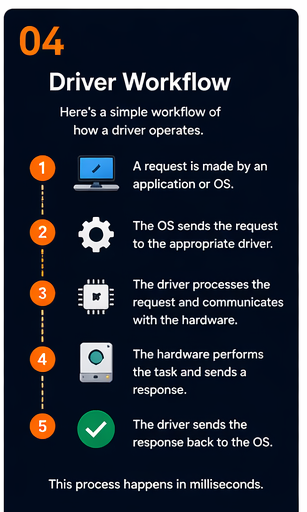
Follow a simple click. You press "Save." Your app whispers "save this file" to the operating system. The OS turns to the storage driver and says, "Hey, can you handle this?" The driver translates that polite request into the exact electrical signals your hard drive understands. Done — your file is safe. All of this happens in less time than a blink.

Behind the scenes, drivers are stacked like a relay team. Each one has its own job — one talks to the device, another tidies up the data, one handles the physical connection (USB, Wi-Fi, you name it). The request passes runner to runner until it reaches the hardware, and the answer travels back the same way.

What's wild is the speed. A typical request — like asking a device for its status, or asking your speakers to play a sound — bounces through this whole relay in microseconds. You experience it as "instant," but a tiny, very organized conversation just took place.

12 Categories

Every Type of Driver, Made Simple

Each tile opens a dedicated page with the full breakdown — privileges, architecture, real-world examples.

Privileged

Kernel-Mode Drivers

Live in the OS's most privileged layer with direct hardware access — fast, but a single bug can crash the entire system.

Read more
Isolated

User-Mode Drivers

Run in the safer user space — if they crash, the OS just restarts them without taking the system down.

Read more
Output

Device Drivers

Translate document data into the exact language your device understands — paper, ink, color, layout, all of it.

Read more
Performance

Display & Graphics

The most updated drivers on your system — they unlock GPU power and drive every frame on your screen.

Read more
Real-time

Audio Drivers

Demand ultra-low latency — pro music needs round-trip audio in under 10 ms to feel real-time.

Read more
Connectivity

Network Drivers

Move billions of bytes between you and the internet, often offloading work to the network chip itself.

Read more
Plug & Play

USB Drivers

A multi-layer stack — host controllers, class drivers, and device-specific logic — all triggered by a single plug.

Read more
High-Speed

Storage & Disk

Translate file system requests into commands your SSD or hard drive understands — using protocols like Advanced Host Controller Interface and Non-Volatile Memory Express.

Read more
Input

Input Devices

Keyboards, mice, touchpads, controllers — all turn physical signals into events your apps can use.

Read more
Foundational

Chipset Drivers

Govern how every component on your motherboard talks to the others — install these first, always.

Read more
Wireless

Bluetooth Drivers

Manage the layered protocol stack that pairs you with headphones, keyboards, watches, and IoT gadgets.

Read more
Software-only

Virtual Drivers

Pretend to be hardware that doesn't exist — they power VMs, VPNs, virtual audio cables, and emulators.

Read more
Server racks in a data center representing the privileged kernel-mode driver layer

Kernel-Mode Drivers

Kernel-mode drivers operate within the most privileged layer of an operating system — the kernel itself. They execute in kernel space, which means they have direct, unmediated access to every system resource, including physical memory, hardware registers, and I/O ports. This high level of privilege is essential because these drivers need to respond to hardware events with minimal latency and maximum control.

Because kernel-mode drivers share the same memory address space as the operating system kernel, any serious problem in a kernel-mode driver can destabilize the wider system. On Windows, this typically results in a stop error. For this reason, kernel-mode drivers are implemented with extreme care, following strict coding standards, memory management rules, and synchronization primitives provided by the operating system's kernel development frameworks.

Examples of kernel-mode drivers include file system drivers, storage drivers, and network protocol drivers. These components need to intercept and process data at the hardware level before the OS can act on it, making kernel-mode the only appropriate execution context for their tasks.


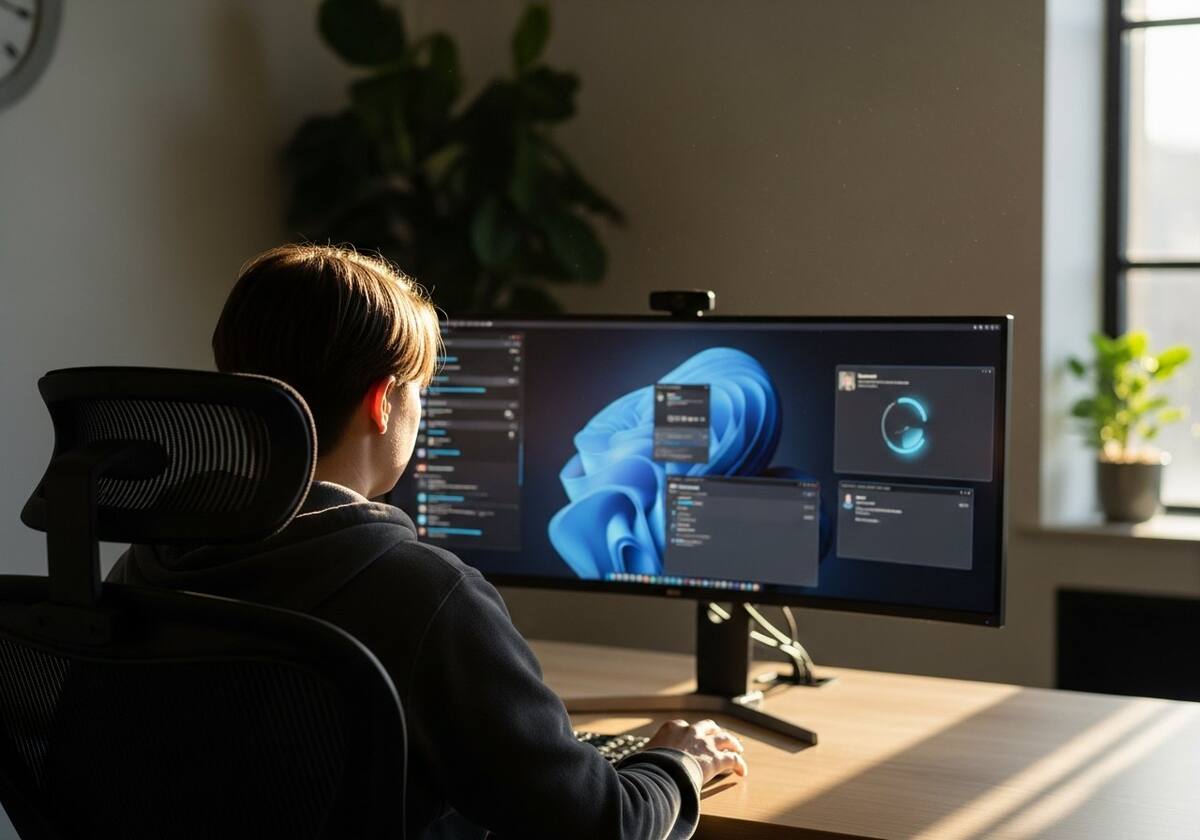
A person working at a computer illustrating user-mode driver isolation

User-Mode Drivers

User-mode drivers run in the less-privileged user space of the operating system, isolated from the kernel by a hardware-enforced memory boundary. This isolation provides a significant safety advantage: if a user-mode driver crashes or encounters an unhandled error, the failure is contained within the user space process, and the operating system can terminate and restart the driver without crashing the entire system.

The Windows Driver Frameworks, specifically the User-Mode Driver Framework, were designed to allow a broader range of device drivers to run safely in user mode. Devices such as cameras, scanners, media players, and certain USB devices often use user-mode drivers because their performance requirements do not necessitate kernel-level access, and the safety benefits outweigh the slight overhead of crossing the user-kernel boundary.

User-mode drivers communicate with kernel-mode components through well-defined interfaces such as device I/O control calls or shared memory segments managed by the OS. While they cannot directly access hardware, they delegate low-level operations to kernel-mode components, receiving results back through these controlled channels.

A modern office device representing device driver software

Device Drivers

Device drivers are the software components responsible for translating document data from an application into a format that a physical output device can interpret and render on paper. This translation is far more complex than it may appear, because different devices use fundamentally different page description languages, command sets, and internal rendering pipelines.

A device driver must handle color management, page layout, resolution settings, and media type configurations. It must convert the graphics and text from the OS's internal representation into a language the device understands — which might be PCL (Device Command Language), PostScript, or proprietary binary formats specific to that manufacturer's device family. The driver also exposes a user interface that allows configuration of print settings such as paper size, orientation, print quality, and copies.

Modern device drivers often include a rendering pipeline that rasterizes vector graphics and fonts into a bitmap at the device's native resolution before transmission. This ensures that the output quality precisely matches what the hardware can produce. Many devices also rely on their driver to handle automatic document splitting, collation, and duplex output logic.

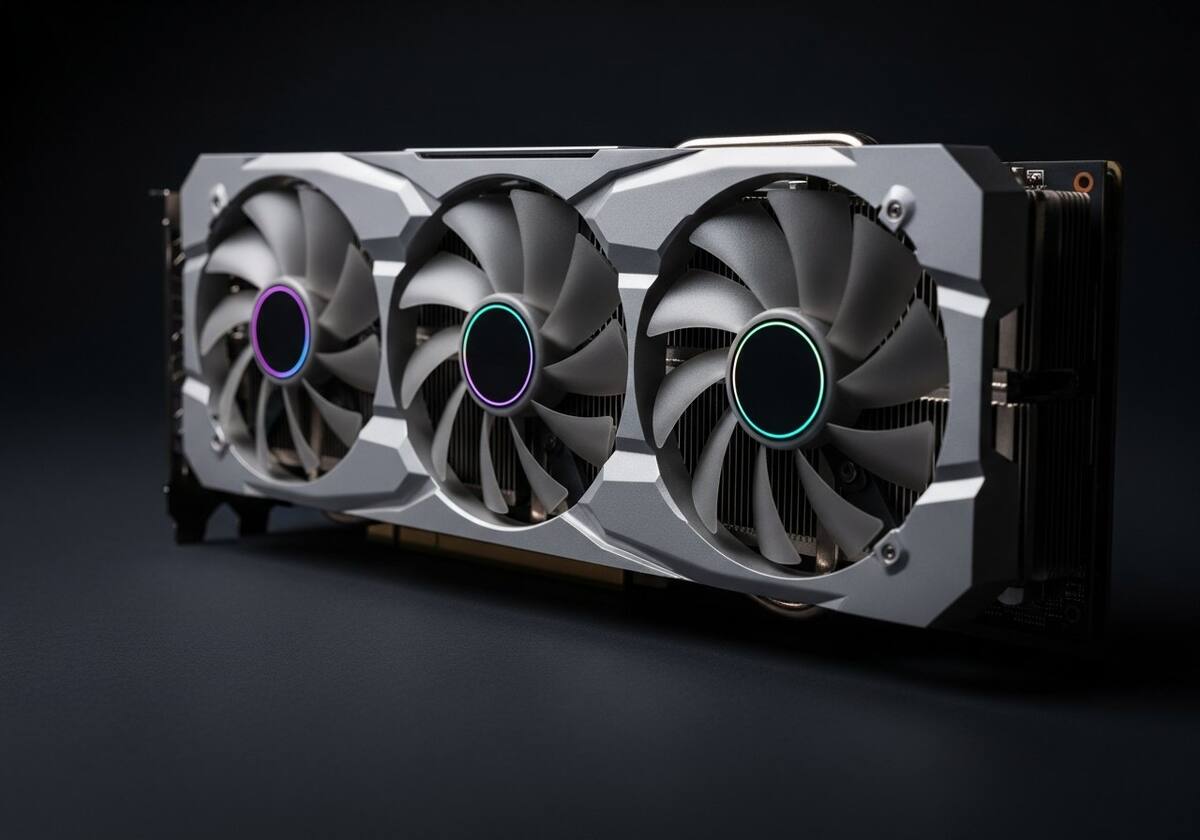
A computer graphics card showing the GPU hardware managed by display drivers

Display / Graphics Drivers

Display and graphics drivers are among the most complex and performance-sensitive drivers in any operating system. They serve as the interface between the operating system's graphics subsystem, application programs, and the physical display hardware, which includes both the graphics processing unit (GPU) and the monitor or display panel itself.

A modern graphics driver manages memory allocation on the GPU's dedicated video RAM, schedules rendering operations across thousands of shader cores, handles display output configuration including resolution, refresh rate, and color depth, and enforces synchronization between the CPU and GPU to avoid visual artifacts like screen tearing. Graphics drivers also expose programming APIs — such as DirectX, Vulkan, OpenGL, and Metal — that allow game engines and professional rendering software to access the GPU's computational power through standardized interfaces.

Graphics drivers are updated far more frequently than most other drivers, often monthly, because game developers and application creators regularly discover performance bottlenecks or compatibility issues that only a driver update can resolve. GPU vendors invest heavily in driver optimization, and the performance difference between an older driver version and a newer one for a specific workload can be substantial.

Professional audio headphones representing sound hardware controlled by audio drivers

Audio Drivers

Audio drivers manage the communication between the operating system's audio stack and the physical sound hardware. Modern computing environments demand extremely low-latency audio processing — professional music production, for example, requires round-trip latency below 10 milliseconds to remain usable in real-time recording scenarios. Achieving this requires the audio driver to bypass many of the buffering layers present in the standard OS audio pipeline.

An audio driver must handle multiple simultaneous audio streams, mix them if necessary, apply any required DSP (digital signal processing) effects such as hardware equalization or spatial audio processing, and convert the mixed digital signal into the analog output that drives speakers or headphones. Simultaneously, it must handle audio input from microphones and other recording sources, synchronizing these streams with sample-accurate timing.

Audio drivers implement standardized interfaces such as the Windows Audio Session API, the Audio Stream Input/Output standard, Core Audio on macOS, and the Advanced Linux Sound Architecture or PulseAudio on Linux. The driver also manages power states for the audio hardware, putting it into low-power idle modes when not in use and waking it up instantly when audio playback begins.

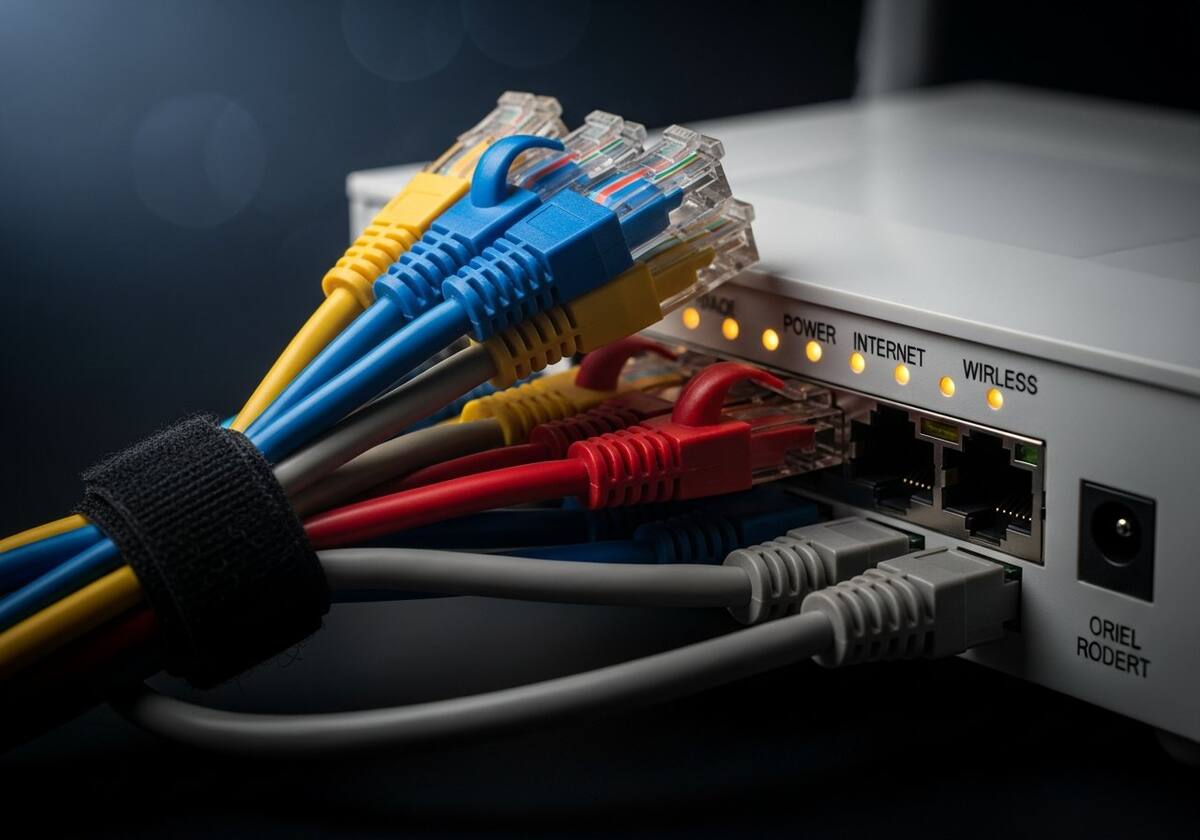
Network cables and server room representing network interface drivers

Network Drivers

Network drivers, also called Network Interface Card (NIC) drivers, are the software components that enable a computer to communicate over local area networks, wireless networks, and the broader internet. They manage the physical-layer transmission of data frames between the computer's network hardware and the OS's network stack, which handles higher-level protocols such as TCP/IP.

A network driver must handle the reception of incoming data frames from the network hardware, which may arrive at gigabit speeds, and efficiently pass them up to the operating system's protocol stack with minimal CPU overhead. On the transmit side, the driver dequeues outgoing packets from the OS, configures the hardware's DMA (Direct Memory Access) engine to read the packet data from system RAM, and signals the hardware to begin transmission.

Modern network drivers also implement advanced features such as TCP segmentation offload (TSO), large receive offload (LRO), and checksum offload — techniques that move computationally expensive tasks from the CPU to the network hardware itself, freeing system resources for other workloads. Wireless network drivers additionally manage the complexity of association with access points, encryption key negotiation, and dynamic rate adaptation based on signal quality.

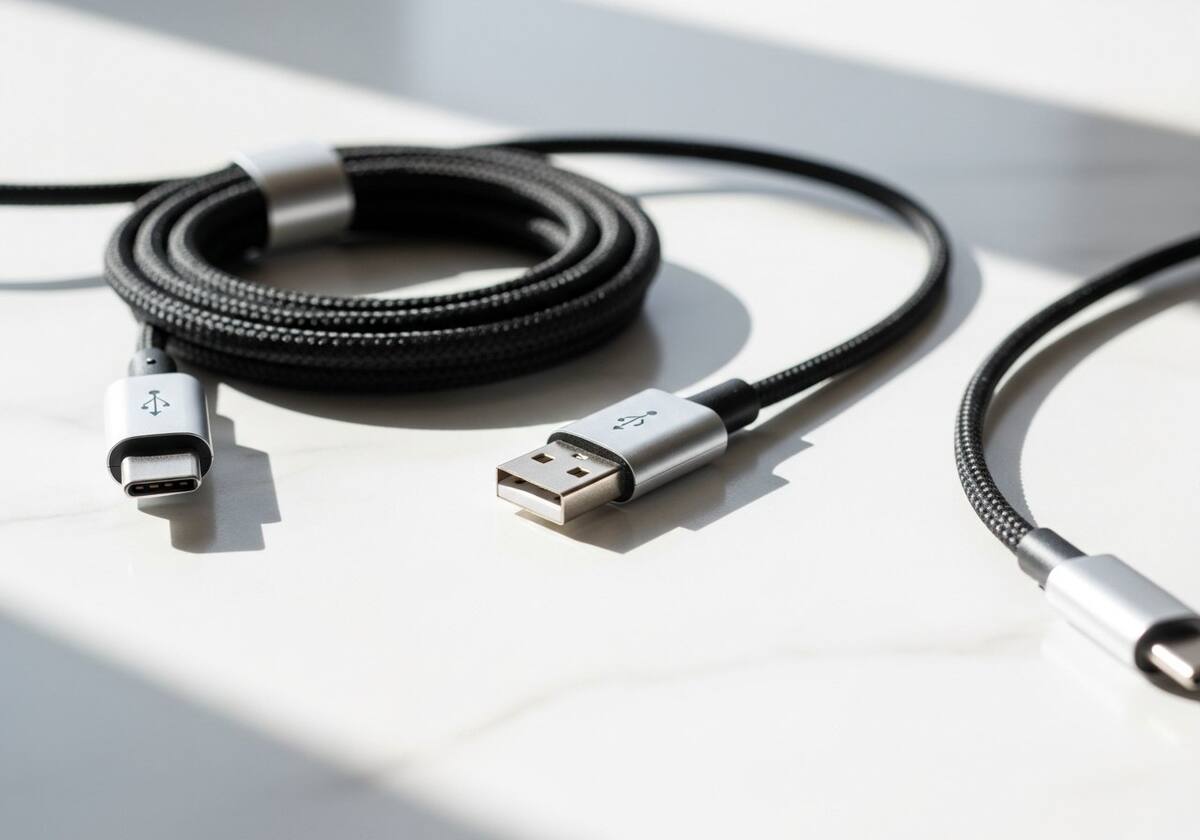
A USB connector and cable showing the connection USB drivers manage

USB Drivers

USB (Universal Serial Bus) drivers form a multi-layered stack that manages communication between USB-connected devices and the operating system. The USB driver stack typically consists of a host controller driver at the bottom, which manages the physical USB port and schedules data transfers on the USB bus, and class drivers or function drivers at the top, which implement the specific behavior of each USB device category.

When a USB device is connected, the host controller driver enumerates it by reading its device descriptor, which reports the device's class, subclass, and protocol. Based on this information, the OS loads the appropriate class driver. USB class drivers handle entire categories of devices using standardized protocols: USB Audio Class for audio devices, USB HID (Human Interface Device) for keyboards and mice, USB Mass Storage for flash drives and external hard disks, and USB CDC (Communications Device Class) for network adapters and serial ports.

USB drivers must also manage power states, handling device suspend and resume transitions, and support USB's capability for hot-plugging — connecting and disconnecting devices while the system is running. This requires careful synchronization within the driver stack to avoid race conditions when a device is removed while a data transfer is in progress.

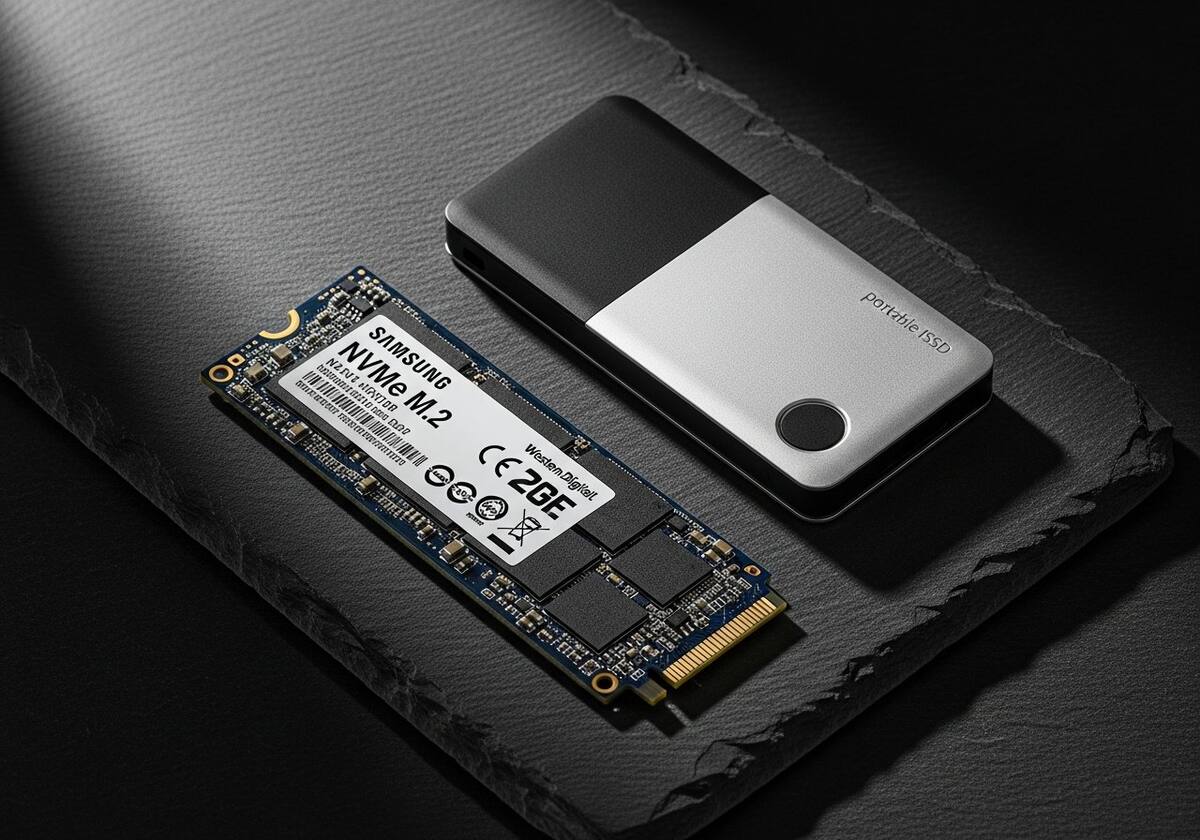
A solid state drive representing the storage hardware managed by disk drivers

Storage / Disk Drivers

Storage drivers manage communication between the operating system and data storage devices, including hard disk drives (HDDs), solid-state drives (SSDs), NVMe devices, optical drives, and network-attached storage controllers. These drivers are responsible for translating file system read and write requests into the specific command sets understood by the storage hardware.

For traditional storage devices, drivers implement the Advanced Host Controller Interface protocol, which defines how software communicates with storage controllers. Non-Volatile Memory Express devices use a newer, purpose-built protocol designed for the low-latency, high-parallelism nature of flash storage. These drivers support thousands of simultaneous input and output queues, compared to the single queue model of legacy disk interfaces, allowing modern solid-state drives to approach their theoretical maximum performance.

Storage drivers also implement important reliability features such as error correction, retry logic for failed read operations, and Self-Monitoring, Analysis and Reporting Technology monitoring, which tracks device health metrics. Some storage drivers implement Redundant Array of Independent Disks logic directly, managing striping, mirroring, or parity calculations in software rather than dedicated hardware.

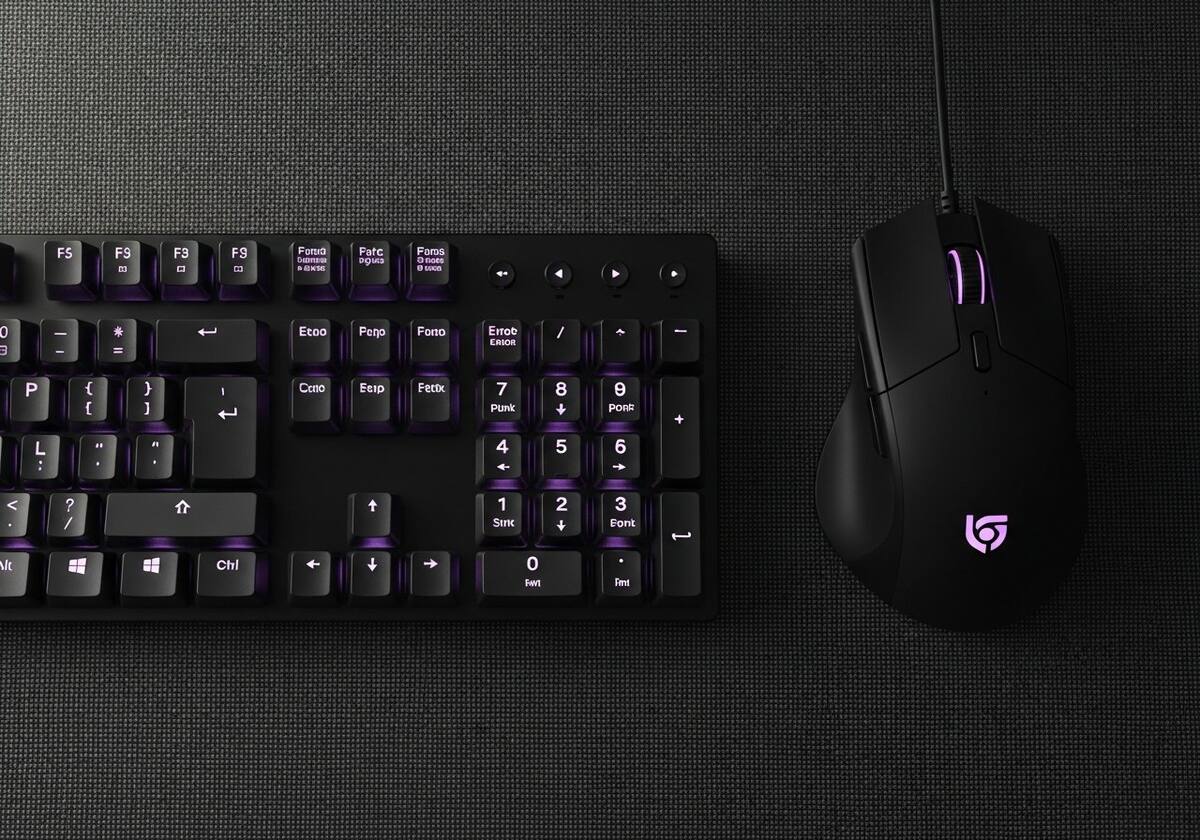
A keyboard and mouse on a desk representing input device drivers

Input Device Drivers

Input device drivers facilitate communication between the operating system and the wide variety of devices through which users interact with their computers. Keyboards, mice, touchpads, trackballs, graphics tablets, game controllers, and touchscreens all require drivers that translate their physical signals into standardized events that the OS and applications can consume.

Many input devices use the USB Human Interface Device (HID) class protocol, a standardized USB specification that defines how keyboards, mice, and similar devices report their state to the host system. The HID protocol describes device capabilities through report descriptors — structured binary documents that explain the format of data packets the device will send. A keyboard's report descriptor specifies which bits represent which keys, and the HID class driver parses incoming reports using this descriptor to generate key press and release events.

Advanced input devices like precision touchpads and graphics tablets go beyond the standard HID specification and require proprietary drivers that handle complex features such as pressure sensitivity, palm rejection, multi-touch gesture recognition, and programmable button mappings. These drivers often include user-space applications for customizing behavior and exposing hardware-specific features that the OS's built-in input subsystem doesn't natively support.

A computer motherboard with chipset components managed by chipset drivers

Chipset Drivers

Chipset drivers are foundational system software components that manage the motherboard's chipset — the collection of integrated circuits that coordinate communication between the CPU, RAM, storage controllers, and device buses. Unlike device-specific drivers, chipset drivers affect the entire system's performance and stability because they govern how all components talk to each other.

A modern desktop or laptop motherboard's chipset controls the PCI Express lanes that connect graphics cards, NVMe SSDs, and USB controllers to the processor. The chipset driver configures power management states for these buses, manages the bus arbitration that prevents two devices from transmitting simultaneously, and enables advanced features such as SR-IOV (Single Root I/O Virtualization) for virtual machine environments.

Installing or updating chipset drivers is one of the most important maintenance tasks for any computing system. A missing chipset driver can prevent the OS from detecting connected storage drives, USB controllers, or expansion cards. Updated chipset drivers often improve system responsiveness, reduce power consumption, and enable new CPU and platform features that the original driver version did not expose. They are typically distributed by motherboard manufacturers and processor vendors.

Wireless bluetooth earbuds representing devices supported by bluetooth drivers

Bluetooth Drivers

Bluetooth drivers manage the complex protocol stack that enables short-range wireless communication between a host computer and Bluetooth-enabled device devices such as headphones, keyboards, mice, game controllers, and smartphones. The Bluetooth protocol stack consists of multiple layered specifications, and the driver must implement all of them correctly to maintain interoperability across thousands of different device manufacturers.

A Bluetooth driver stack typically includes the HCI (Host Controller Interface) layer that communicates with the Bluetooth radio hardware, the L2CAP (Logical Link Control and Adaptation Protocol) layer that provides connection-oriented channels for upper-layer protocols, and profile drivers that implement specific Bluetooth profiles such as HFP (Hands-Free Profile) for audio, HID (Human Interface Device) for keyboards and mice, and A2DP (Advanced Audio Distribution Profile) for stereo music streaming.

Bluetooth Low Energy, introduced with Bluetooth 4.0, added entirely new driver requirements for handling Generic Attribute Profile services used by fitness trackers, medical devices, and IoT sensors. Bluetooth Low Energy drivers must manage the beacon scanning process, attribute service discovery, and characteristic notification subscriptions, all while maintaining the ultra-low power consumption that defines the Bluetooth Low Energy specification's value proposition.

A cloud computing data center representing virtual device drivers and virtualization

Virtual Device Drivers

Virtual device drivers create software abstractions of hardware devices that either don't physically exist or are shared among multiple software environments. They are essential for virtualization platforms, emulation layers, and software systems that need to present a hardware-like interface to other software without requiring actual physical hardware to be present.

In hypervisor environments such as those used for virtual machines, virtual device drivers (often called VirtIO drivers in Linux-based systems) provide virtual machines with access to storage, network, and display resources managed by the hypervisor. These drivers communicate with a virtual device backend running in the privileged host OS or hypervisor kernel rather than with real hardware. The virtual driver translates the guest OS's hardware requests into hypervisor-level calls, which the host then services using real hardware.

Virtual device drivers are also used to create virtual serial ports, virtual audio mixers, virtual network adapters (loopback adapters), and virtual COM ports that allow software to communicate with other software as if it were communicating with real hardware. VPN software, for instance, creates a virtual network adapter that intercepts all network traffic and routes it through an encrypted tunnel, transparent to the applications using the network connection.

Stay Current

Why Keeping Drivers Updated Matters

Regular driver maintenance is the easiest way to keep your system stable, secure, and quick.

Smoother Graphics feel smoother after a driver update
Steadier A well-maintained system runs more steadily
Many Helpful driver updates are released every year
Quick Updating a driver only takes a few friendly minutes

System Stability

Outdated drivers are one of the leading causes of system crashes, unexpected reboots, and application hangs. Driver developers continuously identify and fix bugs that emerge as users encounter edge cases in real-world usage. A kernel-mode driver bug that triggers under specific workloads — a particular GPU shader configuration, an unusual USB packet sequence, or a specific storage command combination — can bring down an entire operating system. By keeping drivers updated, users receive these bug fixes and stability improvements, resulting in fewer crashes, more reliable hardware behavior, and longer periods of uninterrupted operation for both desktop and server systems.

Security Patches

Device drivers are an important part of any operating system because they run with elevated privileges and have direct access to hardware resources. Researchers regularly identify and report issues in drivers, and vendors release improvements as part of driver updates to address them. Keeping drivers current means systems benefit from the latest reliability and stability work, and from the ongoing improvements documented in public release notes by vendors and operating system makers.

Performance Improvements

Driver updates frequently include performance optimizations that improve throughput, reduce latency, and decrease CPU usage for hardware operations. Graphics driver updates, for example, often include optimizations for newly released games and professional applications, sometimes delivering double-digit percentage performance improvements without any hardware changes. Network driver updates may add new offload capabilities that reduce the CPU overhead of processing network traffic. Storage driver updates can optimize queue depths and command scheduling algorithms to extract more operations per second from existing solid-state drives. These improvements compound over time — a system running drivers that are multiple versions behind can perform noticeably worse than one running current drivers on identical hardware.

Hardware Compatibility

As operating systems evolve through major and minor updates, the internal APIs and kernel interfaces that drivers rely on can change. An OS update may deprecate old driver interfaces, introduce new requirements for driver signing, or change the behavior of system calls that drivers depend on. Keeping drivers updated ensures they remain compatible with the current version of the operating system. New hardware standards also emerge regularly — USB4, Thunderbolt 5, DisplayPort 2.1, PCIe 5.0 — and driver updates are required to support devices using these new standards. Without current drivers, newly purchased devices may not function correctly even when the underlying hardware is fully capable.

Where Do Drivers Actually Live on Your PC?

Spoiler: they're not hiding in some secret folder. Your computer keeps them in a few well-known places — and once you know where to look, you can check, manage, and tidy them up like a pro.

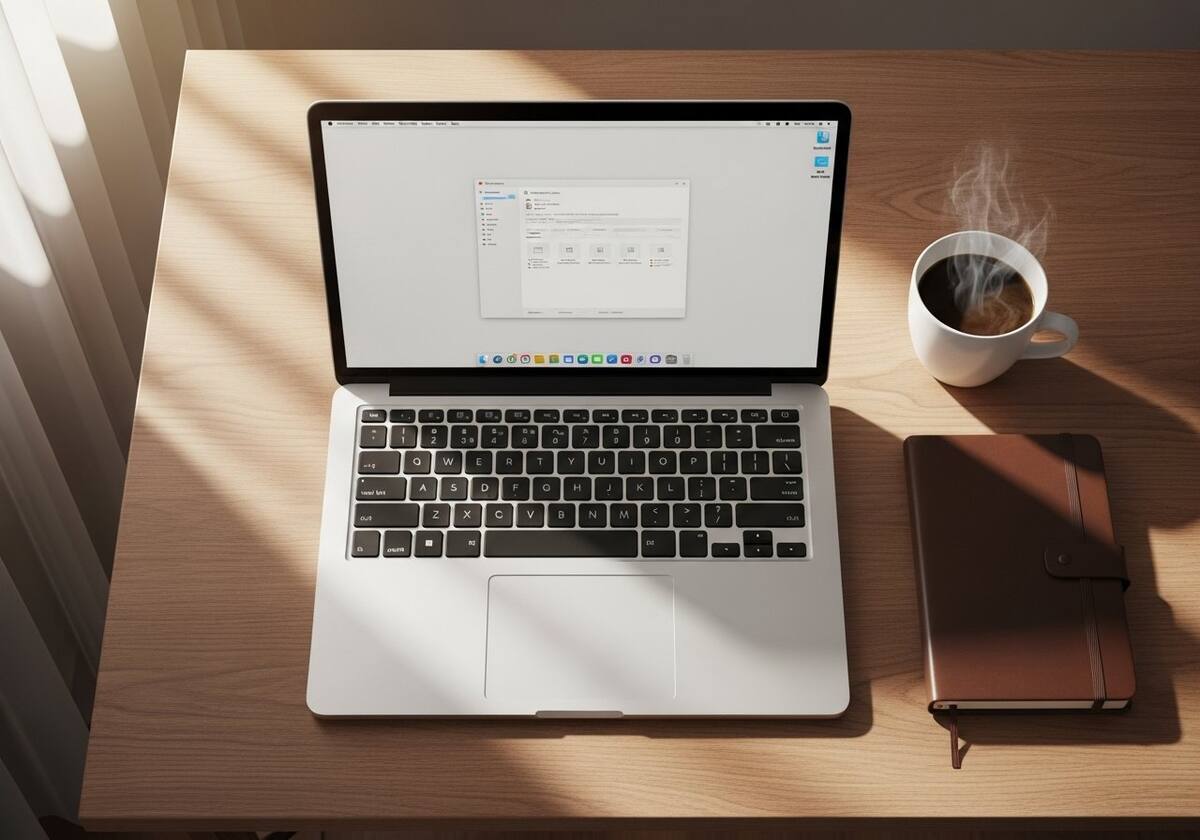
A modern laptop on a desk illustrating where drivers live on a personal computer

Inside the Device Manager

This is the friendliest place to start on a Windows PC. Right-click the Start button and pick "Device Manager," and a tidy list of every piece of hardware on your machine appears — neatly grouped by category. Click any item and you can see its driver, check its version, update it, roll it back if a recent update caused trouble, or remove it entirely. It's like a backstage pass to the people running the show.

Through Settings & Updates

On modern Windows systems, head to Settings, then Windows Update, then "Advanced options" and look for "Optional updates." Many driver updates quietly arrive here — already tested for your machine. On macOS, drivers are bundled into regular system updates, so just keep your OS current. On Linux, your distribution's package manager (or a built-in "Additional Drivers" tool) does the same job.

The Hardware Maker's Website

Every reputable hardware maker keeps a "Support" or "Drivers" section on its official website where you can download the very latest driver for your exact model. This is the go-to spot when you need a brand-new feature, a performance boost, or a fix for a specific bug. Always download directly from the official site — never from a random pop-up — and double-check the driver matches your operating system version.

How to Know Which Driver You're Actually Using

Curious which driver is in charge of your sound, your screen, or your network? It only takes a few clicks to find out — no special tools required.

A computer graphics card representing hardware managed through Windows Device Manager

On Windows

Open Device Manager, expand any category (say, "Display adapters"), and right-click your device. Choose "Properties," then click the "Driver" tab. You'll instantly see the driver name, the publisher, the date it was released, and the exact version number. Hit "Driver Details" for an even deeper look at every file the driver uses. This is the cleanest way to confirm what's running before you decide to update.

A close-up of a computer processor chip representing system information

On macOS

Click the system menu, choose "About This Mac," then click "More Info" and "System Report." A detailed window opens with sections for graphics, audio, USB, network, and more. Each section lists the underlying driver (called a "kext" or "extension") along with its version. macOS handles most drivers automatically, so what you'll usually see are clean, system-managed entries.

A server room with network cables symbolizing system tools on Linux

On Linux

Open a terminal and try friendly commands like lspci -k for connected hardware and the kernel module powering each one, lsusb for USB devices, or lsmod to see every driver module currently loaded into the kernel. The output is text-based but surprisingly easy to scan — and it tells you exactly which driver is doing the work.

How to Update Your Drivers Safely (Step by Step)

Updating drivers sounds scary, but it really doesn't have to be. Follow these gentle steps and you'll keep your computer happy, fast, and stable.

Computer hardware components representing the systems that drivers update and support
1

Back Up First (Always)

Before touching any driver, create a quick system restore point on Windows or a Time Machine snapshot on macOS. It takes a few minutes and gives you a safety net if anything goes sideways. Most of the time you won't need it — but the day you do, you'll be glad it's there.

2

Use the Built-In Updater First

Your operating system's update tool is the safest, simplest place to start. On Windows, run Windows Update and check "Optional updates" for driver entries. On macOS, run Software Update. On Linux, use your distribution's update tool. These updates are tested for your hardware and approved before they reach you.

3

Go to the Hardware Maker for Specialized Drivers

For things like graphics cards, gaming devices, or specialized devices, the very latest driver often comes straight from the hardware maker's official support website. Look up your exact model, download the driver matching your operating system, and run the installer. Stick to official sources only — never trust random "driver updater" pop-ups online.

4

Restart and Test

After installation, restart your computer even if it doesn't insist. Then open the device you just updated — print a test page, play a quick song, launch a game — and make sure everything feels normal. Notice anything weird? You can roll back to the previous driver in Device Manager with one click.

5

Make It a Habit

Set yourself a friendly reminder once a month or so to check for driver updates. You don't need to chase every minor release, but staying reasonably current means better security, fewer surprises, and a PC that keeps feeling like its best self year after year.

How Operating Systems Handle Drivers

Different operating systems take distinct approaches to driver management, each reflecting their design philosophy and target use cases.

The Windows Approach

The Windows operating system uses the Windows Driver Model (WDM) and the newer Windows Driver Frameworks (WDF) to standardize how drivers are written and loaded. When a device is connected, the Plug and Play manager enumerates it, reads its hardware identifiers, and searches the driver store and Windows Update for a matching driver package. If a match is found, the driver is automatically installed without user intervention.

Windows maintains a driver store — a protected repository of driver packages that have been validated and staged for installation. Drivers distributed through Windows Update undergo compatibility and stability testing before being broadly deployed. Windows also enforces driver code signing requirements, mandating that kernel-mode drivers be digitally signed by a trusted certificate authority, which helps prevent untrusted or unstable code from loading in kernel space.

Device Manager is the primary user-facing tool for managing drivers on Windows, allowing users to update, roll back, disable, or uninstall individual drivers. The operating system also maintains driver version history, making rollback possible when a new driver update causes problems.

The Linux Approach

Linux takes a fundamentally different approach to drivers, incorporating the vast majority of device drivers directly into the kernel source tree. This means that for most commonly used hardware, drivers are included with the operating system itself and load automatically through the kernel's built-in hardware detection mechanisms. The Linux kernel's modular architecture allows drivers to be compiled as loadable modules that can be inserted into or removed from the running kernel without a reboot.

The udev system manages device events in Linux, automatically loading the appropriate kernel module when a device is connected, based on rules that match the device's identification attributes. The sysfs virtual filesystem exposes device information and driver parameters to user space, allowing tools and applications to query and configure drivers at runtime.

For hardware that requires proprietary firmware or closed-source drivers — particularly certain wireless adapters and graphics cards — Linux users must separately install vendor-provided driver packages. Distribution package managers simplify this process, and some distributions include proprietary driver detection tools that identify hardware requiring non-free drivers and automate the installation process.

The macOS Approach

macOS uses a driver framework called I/O Kit, which implements drivers as C++ objects organized in a hierarchical matching system. When a device is connected, I/O Kit's matching algorithm walks the device tree and instantiates the most specific driver class that matches the device's properties. This object-oriented approach enforces a clean separation between driver layers and makes it straightforward to implement driver inheritance, where a specialized driver can inherit behavior from a generic parent class.

macOS exerts tight control over the hardware ecosystem for Mac computers, which means that the company can include drivers for supported hardware directly in the operating system. This results in an experience where most devices work immediately upon connection, without requiring manual driver installation. Third-party hardware vendors can distribute drivers through the OS vendor's developer program, which requires notarization — a security check that verifies the driver package hasn't been tampered with.

With the introduction of the DriverKit framework, the OS vendor moved toward user-space drivers for many device classes, improving system stability. DriverKit drivers run as user-space processes rather than in kernel mode, meaning a driver failure can be handled gracefully without crashing the entire system. This represents a significant evolution in macOS's driver architecture philosophy and reflects an industry-wide trend toward isolating drivers from the kernel for improved safety.

Understanding Driver Architecture

Device drivers operate within a layered software stack that translates high-level application requests into low-level hardware commands.

The driver architecture represents a carefully designed layered system where each layer communicates only with its adjacent layers, providing clean abstractions and isolation. At the top, applications make requests through OS-provided APIs — opening a file, playing audio, or sending data over a network. These requests pass into the OS kernel, which manages resources and security boundaries. The kernel routes the request to the appropriate driver based on the target device type and identifier.

The driver layer contains the device-specific logic that translates generic OS commands into the exact sequence of hardware operations required by a particular device model. Between the driver and the physical hardware sits the Hardware Abstraction Layer (HAL), which provides a uniform interface to hardware features like interrupt controllers, DMA engines, and system timers, shielding drivers from platform-specific differences. Physical hardware at the bottom executes the commands and raises interrupts to signal events back up the stack.

Common Driver-Related Problems

Understanding these common driver issues helps in diagnosing and resolving hardware and software problems.

Driver Conflicts

Driver conflicts occur when two or more drivers compete for the same hardware resource, such as an interrupt request line, an input/output port address range, or memory-mapped region. This competition causes unpredictable behavior in both devices, including device failures, reduced performance, or wider system instability. Conflicts most commonly arise when multiple drivers attempt to claim ownership of the same interrupt vector, particularly on older hardware that predates modern interrupt routing standards. Operating systems manage hardware resource allocation through their Plug and Play infrastructure, but certain driver combinations or firmware misconfigurations can still result in conflicting assignments that require manual resolution through device settings or firmware-level interrupt configuration.

Outdated Drivers

Outdated drivers represent one of the most preventable yet frequently encountered sources of hardware and system problems. As operating systems evolve, they introduce new kernel APIs, security requirements, and interface specifications. Drivers that haven't been updated to reflect these changes may fail silently, exhibit reduced performance, or generate compatibility warnings. Graphics drivers are particularly susceptible to becoming obsolete, as new rendering APIs and game engines regularly require driver-level support to function correctly. A GPU running a year-old driver might fail to support newer features like DirectStorage, ray tracing improvements, or AI-accelerated rendering that a current driver would enable, leaving significant performance capability untapped.

Corrupted Driver Files

Driver file corruption can occur due to several causes: incomplete driver installation interrupted by a power failure, disk errors writing driver files to storage, malware that intentionally modifies driver binaries, or disk sectors that develop read errors after the driver was written to them. A corrupted driver may fail to load at all — causing the device to become unavailable — or it may load but produce incorrect behavior due to modified code or data. Operating systems with protected system directories and driver signature enforcement can detect some forms of corruption, but hardware-level data corruption can be difficult to detect until the corrupted driver is executed. Reinstalling the driver from a known good source resolves most corruption issues.

Missing Drivers After OS Install

After installing a new operating system, certain hardware components may not be recognized or may function only with basic generic drivers that lack the device's full feature set. This typically affects hardware that isn't covered by the OS's built-in driver library, particularly newer or niche devices whose drivers haven't yet been included in the OS distribution. Network adapters are especially problematic in this scenario, because the system needs network connectivity to download drivers but can't access the network without them — a bootstrap problem that requires manually downloading drivers on another system and transferring them via USB. Identifying which drivers are missing requires cross-referencing the system's hardware inventory with the available driver database.

Incompatible Drivers

Incompatible drivers occur when a driver designed for one version of an operating system or hardware model is used with a different version. Installing a 32-bit driver on a 64-bit operating system, or a driver meant for one OS version on a significantly different version, can result in loading failures, error codes, or system instability. Hardware that has undergone a minor revision between model generations sometimes has subtle differences that the previous model's driver doesn't account for. Using the wrong driver variant for a hardware revision may work partially but produce errors under specific operating conditions, making the incompatibility difficult to diagnose without carefully comparing driver version strings against hardware revision identifiers.

Signed vs Unsigned Drivers

Driver signing is a verification mechanism that uses digital certificates to confirm that a driver package has been tested and certified by its developer, and that the package hasn't been modified since signing. Operating systems use driver signature enforcement to prevent unsigned or improperly signed drivers from loading in kernel mode, reducing the risk that untrusted code disguised as a driver can gain kernel-level privileges. When unsigned drivers attempt to install, the system may display a notice or block the installation entirely, depending on policy settings. Some legitimate older drivers from discontinued hardware vendors lack valid signatures because the certificates have expired or the vendors are no longer maintaining the packages, creating a trade-off between strict enforcement and hardware functionality.

Frequently Asked Questions About Drivers

Answers to the most common questions about how device drivers work and why they matter.

When a driver is missing, the operating system cannot establish communication with the associated hardware device. In most cases, the device becomes completely non-functional — a device without its driver won't print, a sound card without its driver produces no audio, and a network adapter without its driver has no network connectivity. The OS may display the device in its device manager with an error indicator, typically a yellow exclamation mark, signaling that the device has been detected but cannot be managed due to missing software. In some cases, the OS will load a generic, built-in driver that enables basic functionality — a USB keyboard will usually work with a generic HID driver — but advanced features specific to that hardware model will be unavailable. The solution is always to obtain the correct driver from the hardware manufacturer's resources and install it following the recommended procedure for the operating system in use.
Modern operating systems detect new hardware through a process called hardware enumeration, managed by the Plug and Play (PnP) subsystem. When a device is connected — whether through a USB port, PCI Express slot, or integrated on the motherboard — the hardware bus signals the OS that a new device is present. The OS then queries the device for its identification information: vendor ID, device ID, class code, and revision, all stored in standardized registers on the device's interface hardware. With these identifiers in hand, the OS searches its driver database and connected update services for a matching driver package. If a match is found, the driver is automatically loaded and the device becomes operational. This entire process — from physical connection to fully functional device — can complete in a matter of seconds on modern systems.
A driver signature is a digital cryptographic signature attached to a driver package that certifies the package's authenticity and integrity. The signature is generated by the driver's developer using a private cryptographic key associated with a digital certificate issued by a trusted certificate authority. When an operating system installs the driver, it verifies the signature using the corresponding public key. A valid signature confirms two things: first, that the driver was produced by the developer named in the certificate; second, that the driver files haven't been modified since the signature was applied. If either check fails — if the signature is missing, expired, or doesn't match the files — the OS can reject the installation. This mechanism helps prevent untrusted software from gaining kernel access by impersonating legitimate driver packages.
Drivers and firmware serve different roles in the hardware-software ecosystem, though both are essential for hardware functionality. Firmware is software that is permanently stored within a hardware device itself — in flash memory on the device's circuit board. It contains the fundamental operating logic of the device: how the hardware initializes itself, how it interprets commands sent through its interface, and how it performs its core operations. Firmware runs on the device's own processor and is wholly internal to the device. A driver, by contrast, runs on the host computer's processor, within the host operating system, and acts as the interface layer that allows the OS to communicate with the device. Drivers speak the protocol of the host system, while firmware speaks the internal language of the hardware. Both must be kept updated, but they are updated separately and serve complementary rather than overlapping functions.
Yes — faulty kernel-mode drivers are among the most common causes of operating system instability. Because kernel-mode drivers execute in the same privileged memory space as the OS kernel itself, a programming error in a driver can overwrite important kernel data structures, cause unhandled exceptions, or trigger hardware faults that the kernel's error handling cannot recover from. When this occurs in Windows, the result is a stop error — where the OS halts execution to prevent further problems and saves a memory dump for diagnostic analysis. The dump file identifies which driver module triggered the fault, making post-event diagnosis possible. Linux equivalents are called kernel panics. These events can also result from hardware malfunctions that send unexpected signals or data back through the driver's interrupt handlers, overwhelming the driver's error handling logic.
A generic driver is a standard, broadly compatible driver included with the operating system that supports a category of devices using common, industry-standardized protocols, rather than targeting a specific hardware model's unique features. Generic drivers allow devices to achieve basic functionality immediately upon connection, without waiting for the user to install a manufacturer-specific driver. A generic USB mass storage driver, for instance, allows any USB flash drive to be mounted and accessed as a storage volume. A generic display driver provides the OS with the ability to output video at standard resolutions, even if the full capabilities of a graphics card — advanced rendering acceleration, custom color profiles, multiple-monitor configurations — are unavailable without the specific driver from the GPU manufacturer. Generic drivers prioritize compatibility across the widest range of hardware over support for device-specific features.
During operating system installation, the installer loads a minimal set of drivers needed to perform the installation process itself — a storage driver to access the target disk, a basic display driver, input device drivers for keyboard and mouse, and a USB driver for media reading. After the OS files are copied to the target storage device and the system reboots into the newly installed OS for the first time, the PnP subsystem performs a comprehensive hardware enumeration, discovering all connected devices. For devices whose drivers are included in the OS image, those drivers are automatically installed. For devices requiring additional drivers — particularly those shipped on a disc with a device device — the user must manually initiate installation after the basic OS setup completes. Many modern OS installations also connect to the internet immediately after setup to download and install drivers for hardware that isn't bundled with the OS image.
Driver rollback is a feature of operating systems that allows a user to revert to a previously installed version of a driver when a newly installed version causes problems. When a new driver is installed, the OS typically retains the previous driver version in its driver store. If the updated driver introduces instability, reduces performance, or causes hardware malfunction, the user can access the device's properties through Device Manager (on Windows) and select "Roll Back Driver" to restore the prior version. This feature is particularly valuable for graphics drivers and audio drivers, which are updated frequently and occasionally introduce regressions. Not all driver updates support rollback — if no previous version was stored by the OS, the rollback option will be unavailable. In those cases, manually obtaining and installing an older driver version from the manufacturer's historical release archive is the equivalent recovery path.
The Whole Story, At a Glance

Drivers Explained in 10 Simple Visuals

From "what is a driver?" to "how to keep them happy" — ten clean, visual cards that take you from zero to confident in under five minutes.

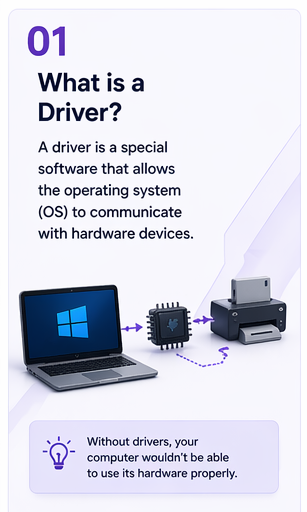
01 What is a driver — a special software that helps the operating system communicate with hardware devices
What is a Driver?Special software that lets your OS talk to hardware.
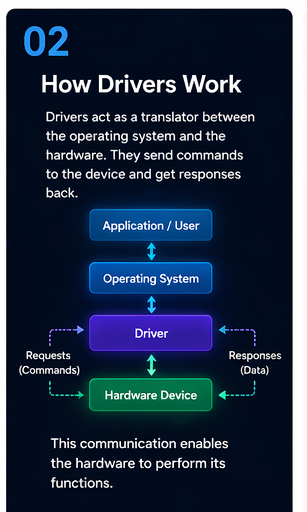
02 How drivers work — translating between operating system and hardware via requests and responses
How Drivers WorkThe translator between your OS and your hardware.
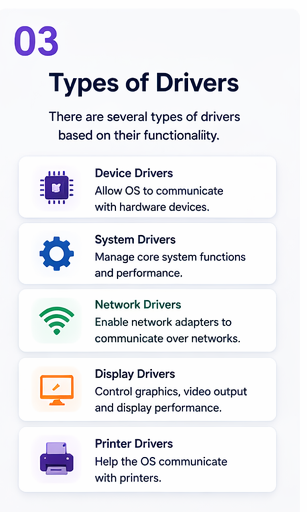
03 Types of drivers — device, system, network, display, and device drivers
Types of DriversDevice, system, network, display, and device.
04 Driver workflow — five-step communication between application, OS, driver, and hardware
Driver WorkflowFive quiet steps that happen in milliseconds.
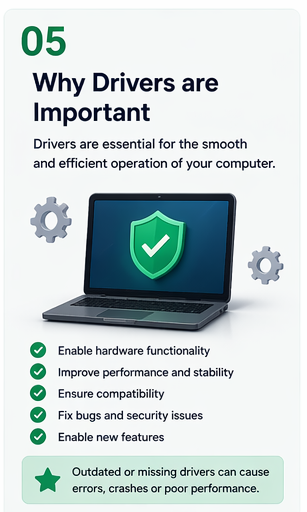
05 Why drivers are important — they enable hardware functionality and improve performance
Why They MatterSmooth, stable, secure — that's all good drivers.
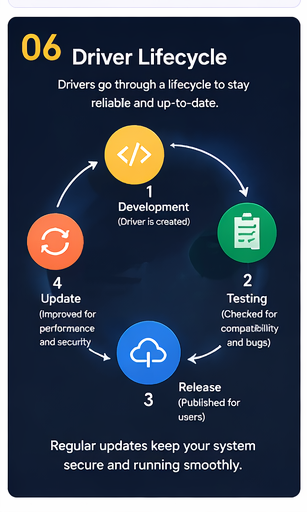
06 Driver lifecycle — development, testing, release, and update phases
The LifecycleHow a driver is built, tested, released, updated.
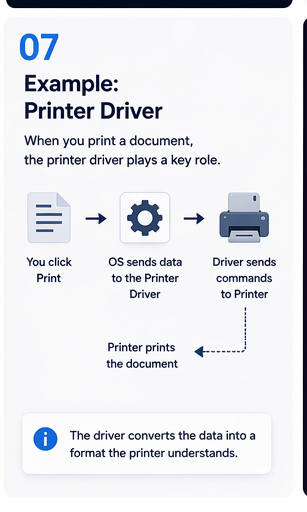
07 Example device driver workflow — converts data into a format the device understands
Real ExampleWhat happens when you click "Print".
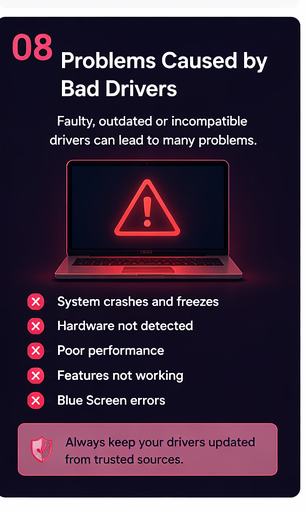
08 Problems caused by bad drivers — system crashes, hardware not detected, poor performance
When Things Go WrongFaulty drivers behind crashes and odd glitches.
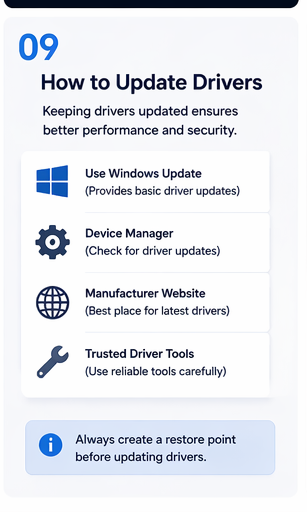
09 How to update drivers — Windows Update, Device Manager, manufacturer website, trusted tools
How to UpdateThe four safe places to find new drivers.
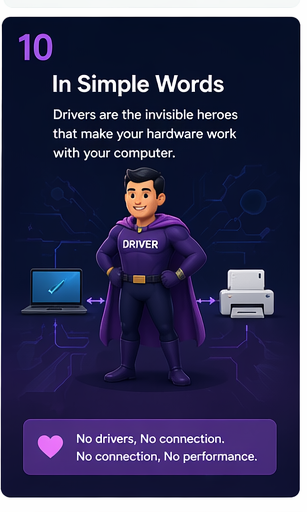
10 In simple words — drivers are the invisible heroes that make your hardware work
In Simple WordsThe invisible heroes inside every device.

Tap any card to enlarge — designed to be readable on mobile, tablet, and desktop.

Helpful Topics We Cover

Pick a Hardware Category and Dive In

Each overview is bite-sized, friendly, and written to make sense the very first time you read it. No jargon walls. No paywalls.

Device Drivers

Why your device needs special software, what goes wrong, and how to keep output painless across home, office, and shared setups.

Read More

Graphics Drivers

How GPUs, displays, and modern apps stay in sync — and why a tiny driver update can transform game performance.

Read More

Audio Drivers

The quiet software shaping every chime, voice call, and music track that comes out of your speakers and headphones.

Read More

Network Drivers

The bridge between your operating system and the wired or wireless chip that connects you to the wider internet.

Read More

USB & Devices

How keyboards, mice, drives, webcams, and controllers get recognised the instant you plug them in — and what to try when they don't.

Read More

System Drivers

The chipset, CPU, and storage drivers you never see — but always feel — making your machine boot fast and run smoothly.

Read More
A person working calmly at their laptop in a bright workspace
About PrintSoftDriver

A Friendly Voice in a Noisy Tech World

We are a small, independent education project built around one stubborn idea — technology should not feel intimidating. Every overview on this site is written to make sense the first time you read it, whether you are a complete beginner or someone who already knows their way around a kernel debugger.

No sponsorships. No affiliate links. No "instant driver updater" nonsense. Just clear, honest explanations of how things actually work.

  • Independent and free to read, always
  • Plain-English first, technical accuracy second to none
  • Privacy-respecting — no aggressive trackers or sold data
Read More About Us
Need Help Right Now?

Driver Knowledge, Calm and Step-by-Step

Stuck with a device that prints blanks, audio that vanished, Wi-Fi that keeps dropping, or a graphics driver throwing a tantrum? Our knowledge overview walks you through the universal first steps and the symptom-specific fixes — calmly, without scary jargon.

Open the Knowledge Center
A friendly tech support specialist at a clean desk