
Where Your GPU Meets the Real World
Every frame on your screen is the result of a quiet conversation between the operating system, the graphics card, and a remarkable piece of software called the graphics driver.

Every frame on your screen is the result of a quiet conversation between the operating system, the graphics card, and a remarkable piece of software called the graphics driver.
A graphics driver takes the picture your operating system wants to draw — a window, a video, a 3D game scene — and translates it into thousands of tiny instructions that your GPU can execute in parallel. It schedules these instructions, manages the GPU's on-board memory, and handles the timing required to display a steady stream of frames without flicker or tearing.
Modern graphics drivers are also responsible for talking to programming interfaces that game and creative apps use, including DirectX, Vulkan, OpenGL, and Metal. They translate those high-level commands into hardware-specific operations.
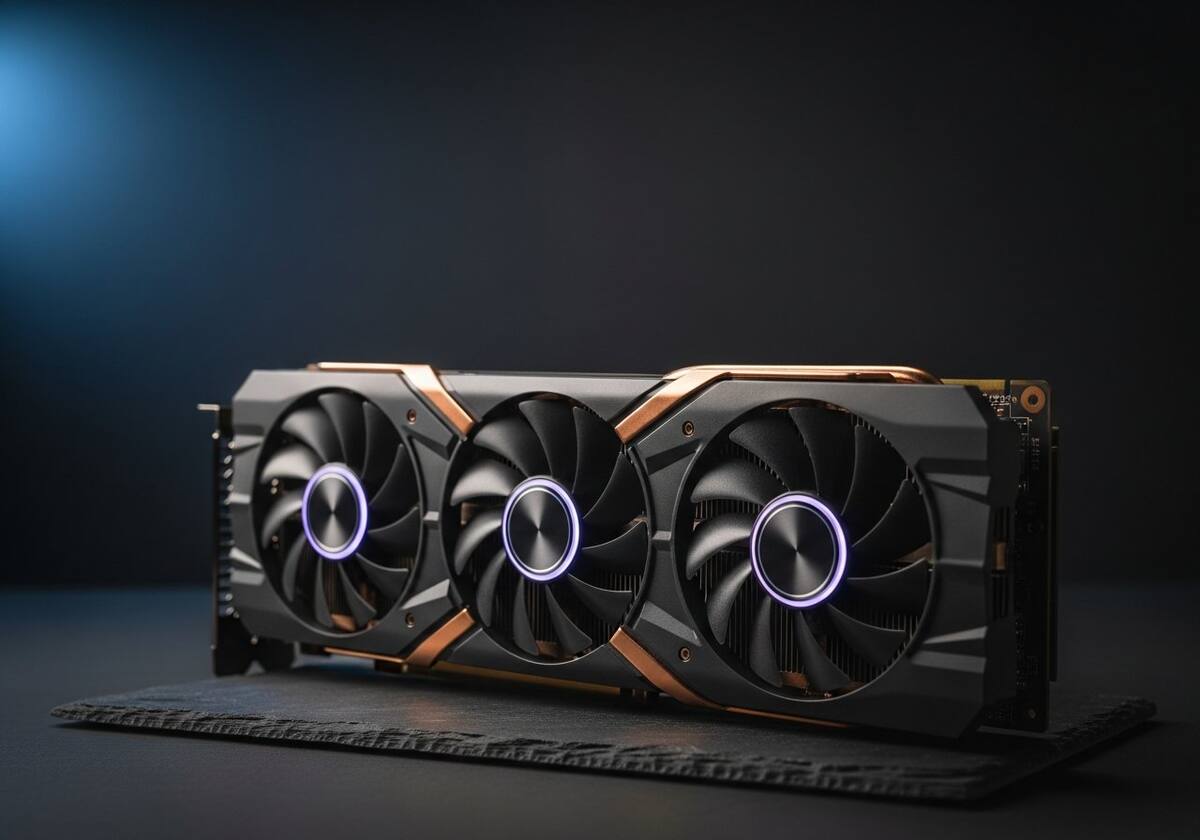
A new graphics driver can give you noticeably smoother gameplay in a brand-new game without you changing a single setting. That is because GPU makers regularly tune their drivers for upcoming releases — adjusting how shaders are compiled, how textures are streamed, and how memory is managed for that specific title.
For creative work, the same is true. Video editing, 3D modelling, and AI image generation all rely on a well-tuned graphics driver to unlock the full performance of your hardware.
Most "is my computer dying?" moments — random crashes during games, screen flickers, displays that go black for a second, the cursor leaving trails — are graphics driver issues, not hardware failures. The fix is almost always a clean install of the latest stable driver from your GPU manufacturer.
If you are an enthusiast, do not be tempted to chase every brand-new beta driver. Stick with the WHQL-certified releases for everyday use, and only roll forward when there is a clear benefit for the games or apps you actually use.
The questions readers send us most often about graphics drivers explained.
Update when you have a problem, when a brand-new game is launching, or when the manufacturer flags a security or stability fix. Routine monthly updates are not required.
Usually it is the driver, not the silicon. Try the latest stable driver first, then a clean reinstall. If the flicker persists across drivers and operating systems, then look at the hardware.
For laptops, the laptop maker's version is tested for your specific model, including thermal limits. The GPU maker's version is newer but generic. Use whichever solves your specific problem.
Our friendly overview covers every major hardware category — from the device on your desk to the chips inside your laptop.