Fix: When the Keyboard Stops Typing
Practical checklist for the most common reasons a keyboard goes silent, with calm steps to bring it back.

Practical checklist for the most common reasons a keyboard goes silent, with calm steps to bring it back.
For wired keyboards, try a different Usb port — directly on the system if possible. For wireless ones, check the receiver is in a Usb port that has not gone to sleep, and confirm batteries are charged.
Mechanical keyboards with detachable cables are particularly prone to a working-loose Usb-C connector. Reseating the cable on both ends takes ten seconds and resolves a surprising number of cases.
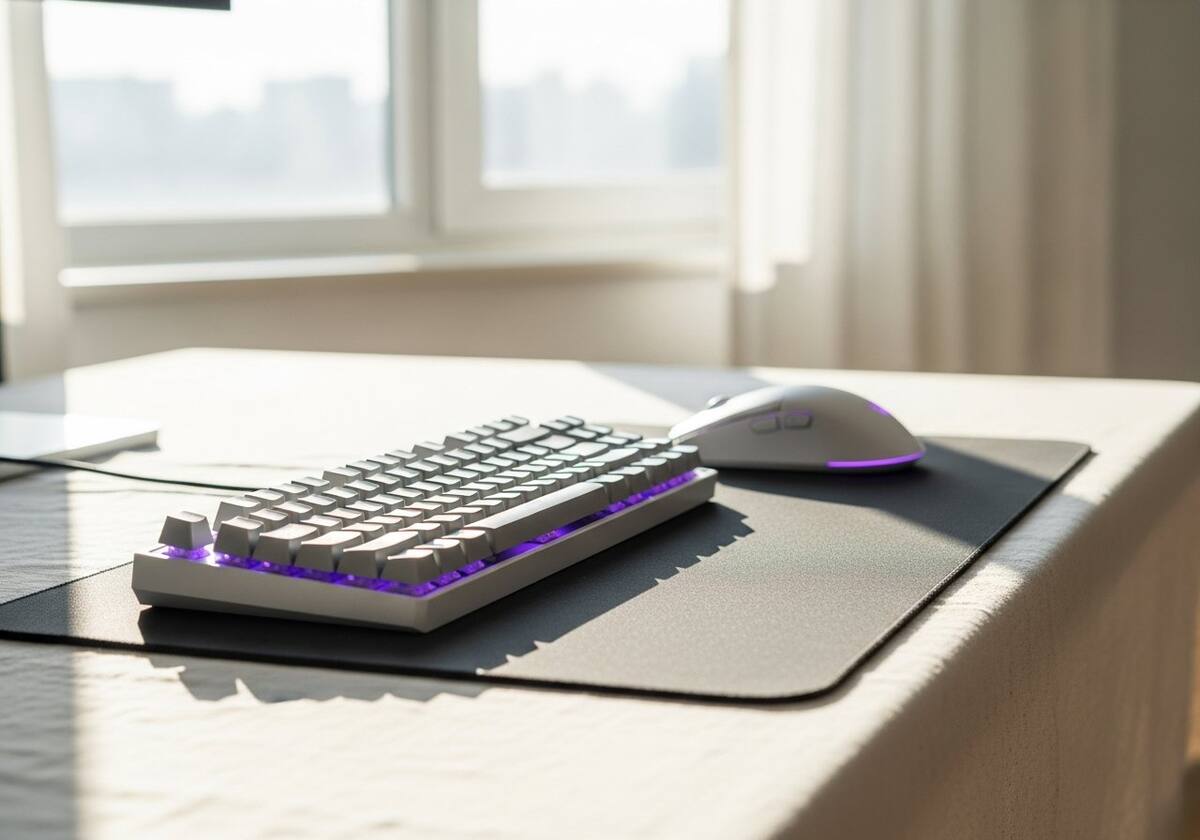
A keyboard that types unexpected characters or seems to ignore some keys is often experiencing a layout mismatch rather than a driver issue. Open the language and input panel and confirm the active layout matches the physical layout of your keyboard.
Switching layouts mid-session can be a single keystroke combination, so an accidental change is easy. Returning to the right layout in the panel restores normal typing immediately.

If the keyboard genuinely is not registering keystrokes after the connection is solid, uninstall the entry in Device Manager and reboot. The next boot redetects the device and loads a fresh driver, which clears most stuck state.
For gaming keyboards with companion software, reinstalling the companion utility often resolves macro and lighting issues that the basic driver refresh leaves untouched.

Hand-picked articles that pair well with this one.
Plain-English explainers, fix walkthroughs, and concept articles for every part of your system.