Fix: Keyboard Backlight Not Working on Your Laptop
Three common causes for a dark keyboard: a function-key toggle, a power-management setting, and the small keyboard driver that controls the LEDs.

Three common causes for a dark keyboard: a function-key toggle, a power-management setting, and the small keyboard driver that controls the LEDs.
Most laptops put the keyboard backlight on a function key — F5, F9, F10, or sometimes a dedicated illumination key. Press it (sometimes with Fn) and the backlight should cycle through brightness levels or off.
On macOS, the backlight is on F5 and F6 and behaves the same way. If pressing the keys does nothing, the issue is software rather than a stuck key.
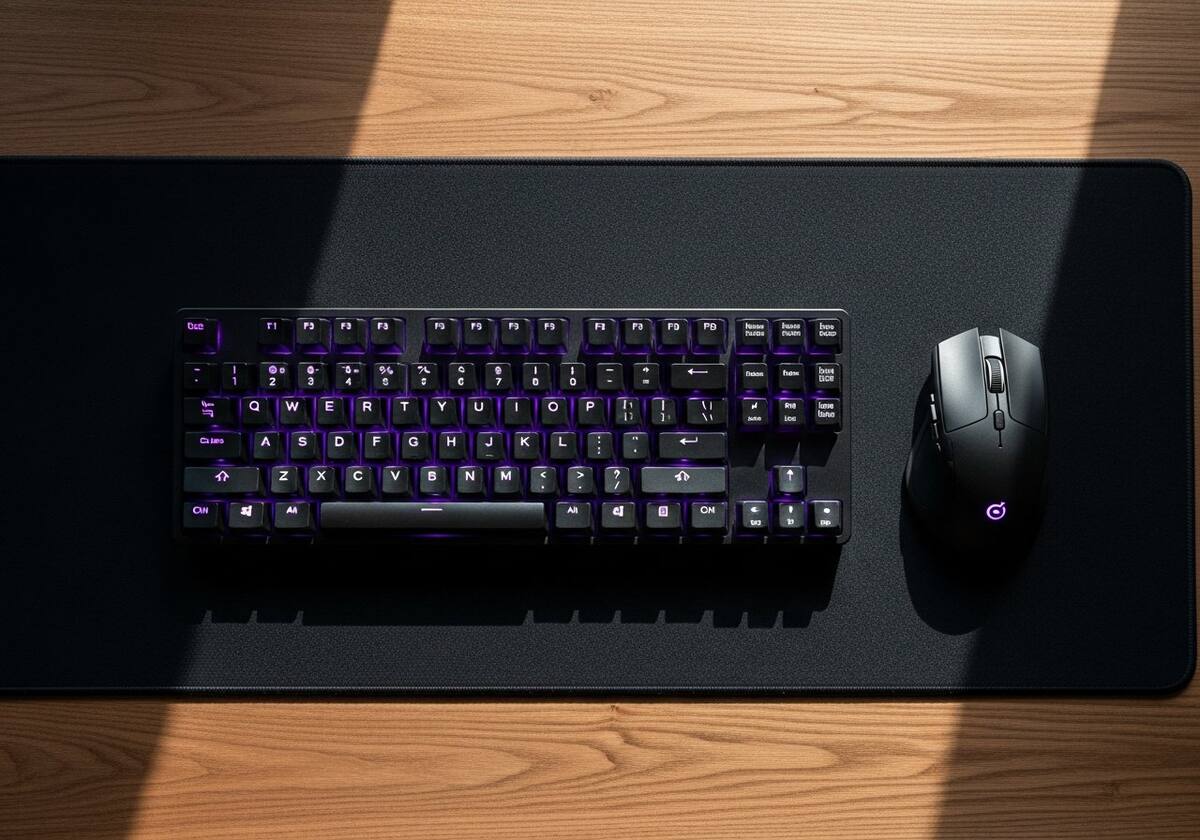
Many laptops will turn off the backlight after a brief period of idleness to save power, even on AC. Look in your laptop manufacturer's settings app or BIOS for a 'keyboard backlight timeout' setting and adjust it if you prefer the backlight stays on continuously.
On battery, some laptops are aggressive enough that the backlight only comes on when you press a key. This is intentional power saving, not a fault.
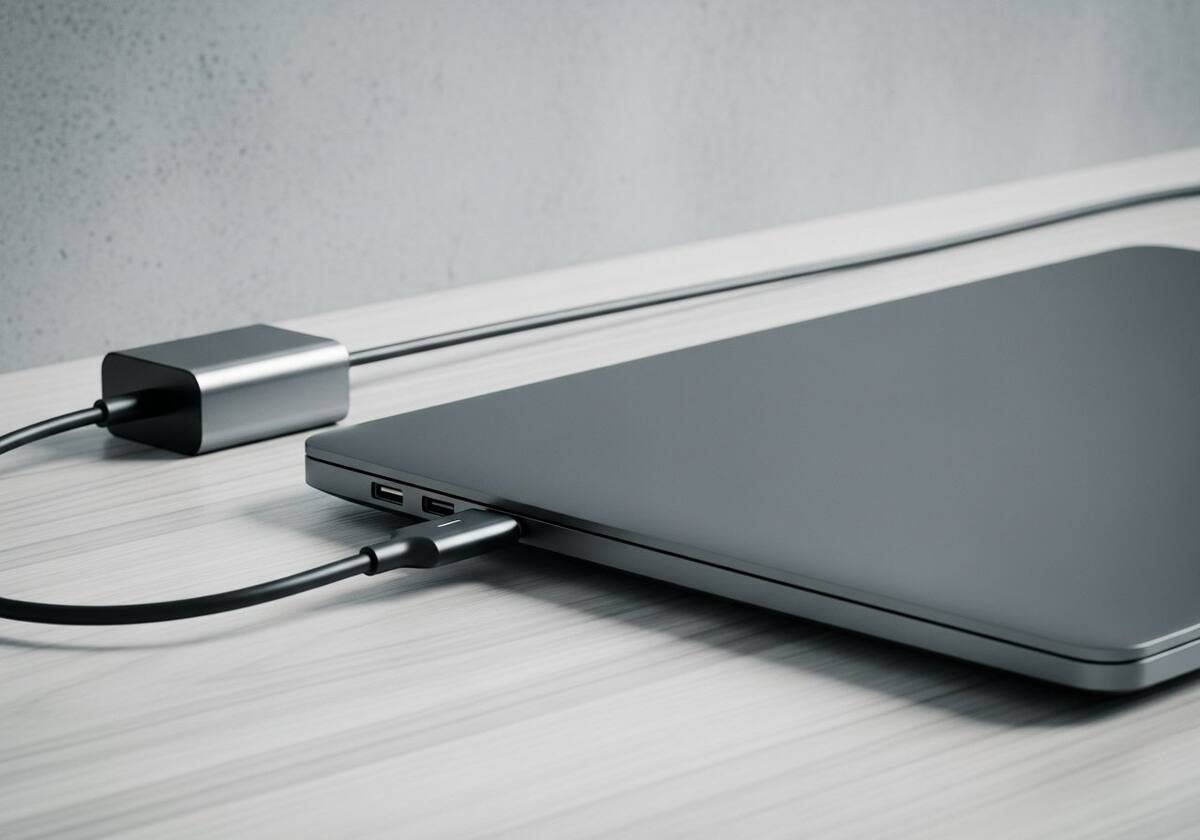
If the function key does nothing and power settings look correct, the keyboard driver itself may be at fault. Reinstall your laptop manufacturer's hotkey or function-control package (such as the manufacturer-supplied hotkey utility) depending on your brand.
These vendor packages often include the keyboard backlight controller. Without them, the function key may simply not reach the keyboard's microcontroller, and the LEDs stay dark.
The questions readers send us most often on this topic.
Power-management timeout. Adjust it in your laptop manufacturer's app or BIOS.
Not really — the LEDs are physically integrated into the keyboard chassis. Only models that shipped with backlight have it.
Updates occasionally replace the vendor's keyboard driver with a generic one. Reinstalling the vendor's hotkey app restores the backlight.
Hand-picked articles that pair well with this one.
Our knowledge section has more calm, ordered walkthroughs for the most common driver-related headaches.