Set the Default Audio Device — Per App and Globally
A short, friendly walkthrough of setting global and per-application audio devices, and pinning the choice you want.

A short, friendly walkthrough of setting global and per-application audio devices, and pinning the choice you want.
In the audio settings panel, every output device on the system is listed. One is marked as the default — the one applications will use unless they specifically pick another. Right-click any device and choose "Set as default" to switch.
The default communication device is a separate setting and applies to voice calls only. Setting both to the same device is fine and is what most users want.
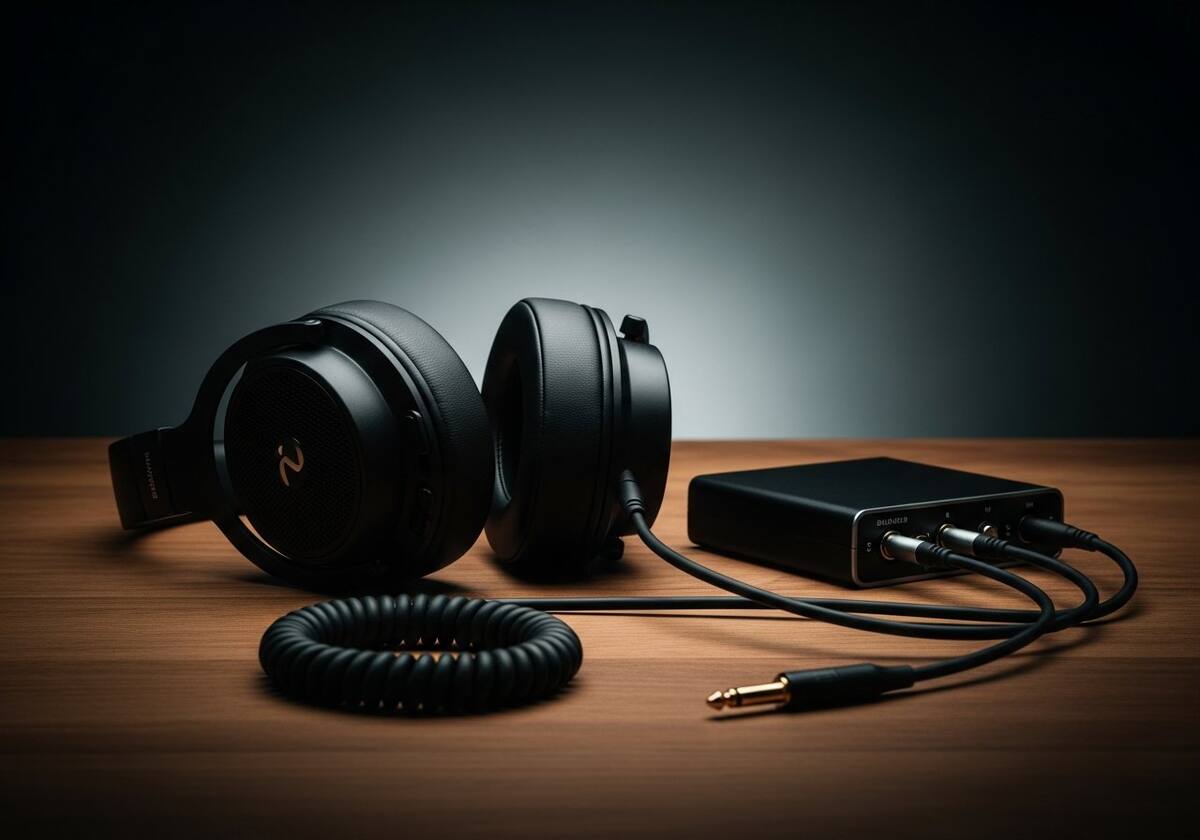
Modern audio settings include a per-application section. You can route a specific application to a specific device — for example, music to your speakers and meetings to your headset. The choice persists until you change it.
If an application does not appear in the list, play a few seconds of audio first. The system adds applications to the list once they actually output sound.

Some headsets present multiple endpoints — a music endpoint and a chat endpoint, for example. Setting the right one as default takes care; the wrong endpoint may explain why the change appears to not stick.
For Bluetooth headsets that have a "hands-free" and a "high-fidelity" profile, picking the right profile in the audio settings is also important. Hands-free is the chat profile; high-fidelity is for music.

Hand-picked articles that pair well with this one.
Plain-English explainers, fix walkthroughs, and concept articles for every part of your system.