Quick Fix Overview

USB Device Not Recognised

You plugged it in. The familiar chime did not happen. Or worse, the computer popped up a blunt 'unknown device' message. Calm down — this is one of the friendliest problems on the list.

Difficulty: Easy ~5–12 minutes Spare USB cable helpful
HomeKnowledgeUSB Not Recognised
60-Second Quick Fix

Try This First — The 60-Second Triple Check

  1. Try the device in a different USB port on the same computer.
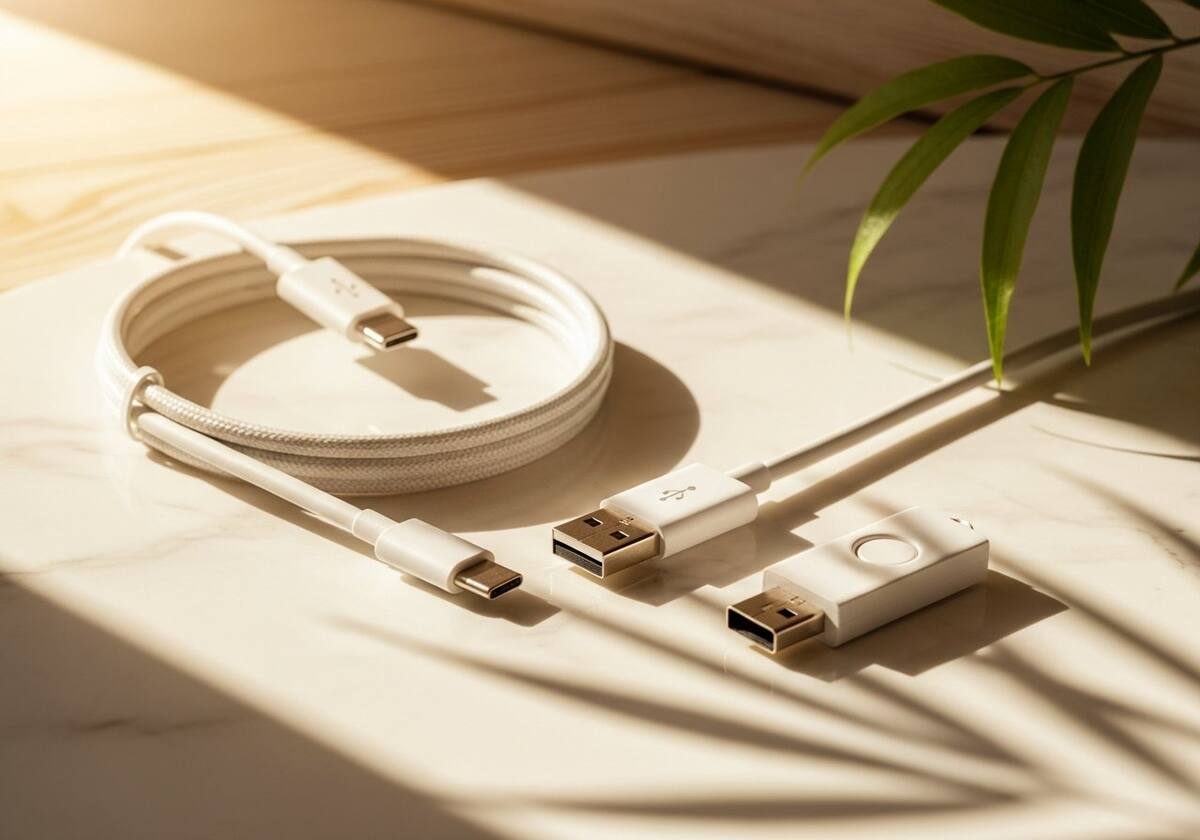
  2. If you can, try a different USB cable — cables fail far more often than people realise.
  3. Try the device on a second computer, even briefly. That instantly tells you whether it is the device or your computer.
What's Actually Happening

Why USB Devices Sometimes Refuse to Show Up

USB is one of the great success stories of computing — billions of devices, all sharing one connector standard. The downside is that there are a lot of moving parts behind the scenes. When you plug in a USB device, the operating system has to: detect that something was inserted, ask the device to identify itself, find the right driver to talk to it, load that driver, and finally let your applications use it. A failure at any of those steps shows up as 'not recognised'.

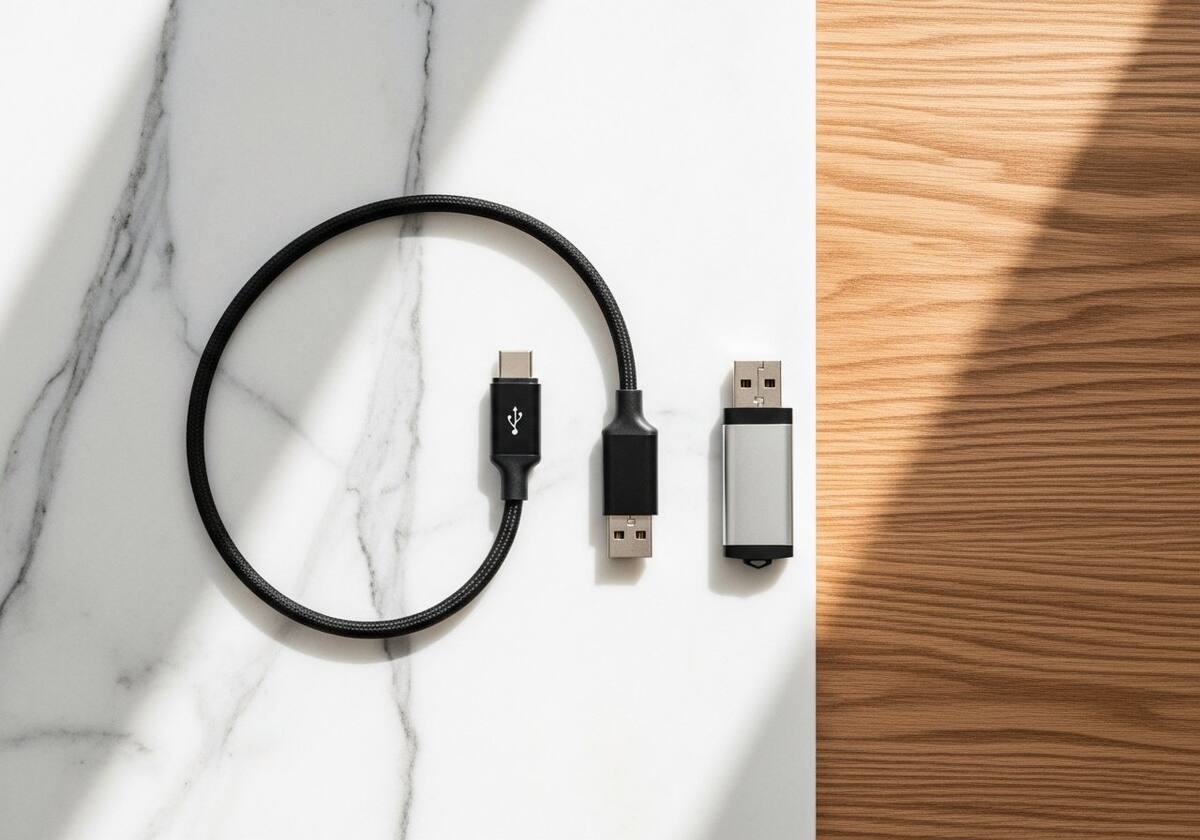
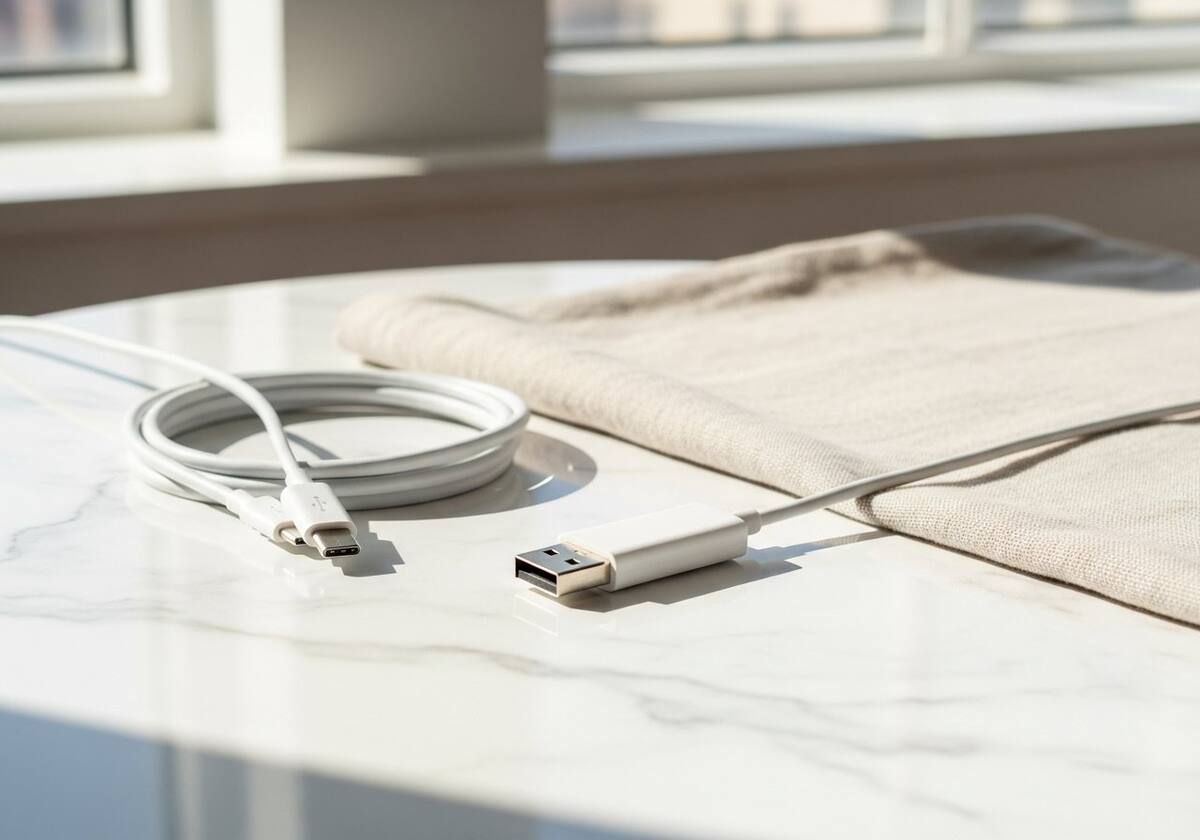
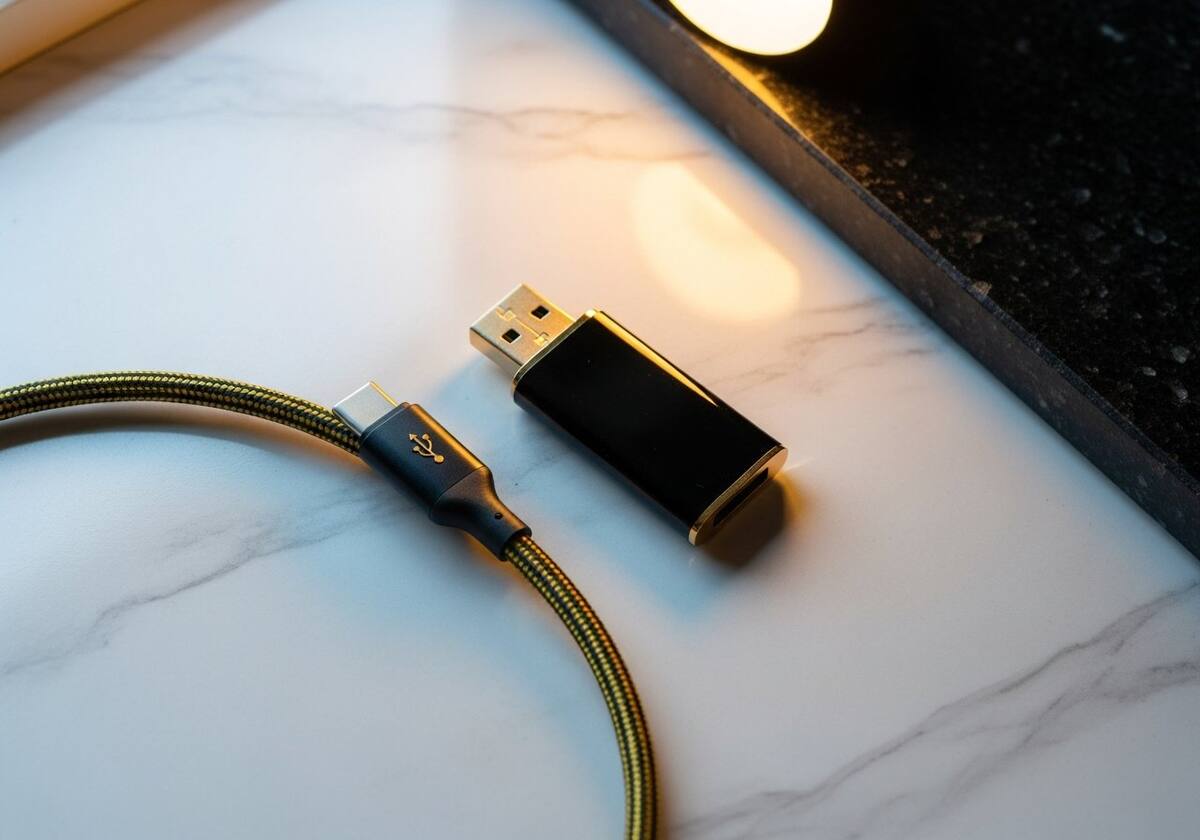
The single most common cause is the cable. USB cables — especially cheap ones — wear out, develop intermittent breaks, or were never built to carry data in the first place (some are charge-only). Always rule out the cable before suspecting anything more complicated.

The second cause is the USB controller driver itself, which sits one layer below the device-specific driver. If the controller is in a weird state, no USB device on that port will work properly. A clean reinstall of the controller driver fixes this kind of system-wide misbehaviour.


Why USB Devices Sometimes Refuse to Show Up
The Calm, Step-by-Step Fix

Get Your USB Device Talking Again

Work through these in order. Most readers solve the problem by step three — and almost everyone by step five.

1 Try a Different Port and Cable

Try a Different Port and Cable

Before any software fixes, do the physical-layer check. Different port, different cable. This solves the problem about a third of the time on its own.

  • Move the device to a USB port directly on the computer (not a hub).
  • Try a known-good cable if you have one.
  • Avoid front-panel ports on desktops as a test — they are often less reliable than rear ports.
2 Check Device Manager for the Mystery Device

Check Device Manager for the Mystery Device

Open Device Manager and look for any device showing a yellow warning triangle. That is the OS telling you exactly which driver it cannot load.

  • Open Device Manager.
  • Look for any item with a yellow exclamation mark.
  • Right-click and choose Update driver → Search automatically.
  • If that fails, choose Uninstall device and unplug then replug the device.
3 Reinstall the USB Controller Driver

Reinstall the USB Controller Driver

If the issue affects multiple devices, the USB controller driver is the suspect. Uninstalling it forces a fresh load on next boot.

  • In Device Manager, expand 'Universal Serial Bus controllers'.
  • Right-click each entry and choose Uninstall device.
  • Restart — the OS reinstalls the controllers automatically.
  • Reconnect your USB device and test.
4 Disable USB Selective Suspend

Disable USB Selective Suspend

On laptops, the OS can power down USB ports to save battery — and sometimes that goes wrong. Disable selective suspend as a test.

  • Open Power Options → Change plan settings → Advanced power settings.
  • Expand USB settings → USB selective suspend setting.
  • Set both Battery and Plugged in to Disabled.
  • Apply and try the device again.
5 Install the Device-Specific Driver

Install the Device-Specific Driver

Some USB devices — devices, audio interfaces, complex devices — need their own driver from the maker, not just the generic OS one.

  • Visit the device manufacturer's official support page.
  • Search for your exact model and your operating system version.
  • Download the driver, run the installer, and restart.
  • Reconnect the device and test.
Common Root Causes

Why This Happens In the First Place

Tap any cause to read the friendly explanation behind it.

Why does my USB device work on one computer but not another?
That confirms the device itself is fine. The problem is on the computer where it does not work — either the USB controller driver, the port, or a specific power-management setting. Reinstall the controller driver first.
Why does Windows say 'Unknown USB Device (Device Descriptor Request Failed)'?
That message means the OS detected something was plugged in, but the device never identified itself correctly. Try a different cable first — that is the cause about half the time. If not, the USB controller driver needs a reinstall.
Why does the same port work for charging but not data?
Some USB cables are charge-only and physically lack the data wires. Always test with a cable you know carries data.
Why does my USB hub stop working after a few hours?
Unpowered USB hubs share power between every device plugged in. As more devices wake up, the hub runs out of power and starts disconnecting things. Use a powered hub or plug high-power devices directly into the computer.

What Not To Do

Avoid third-party "driver updater" tools that promise instant fixes. They often install bundles you do not need and occasionally cause the very problems they claim to solve. Stick to the official manufacturer support page for your device.

If It Still Will Not Cooperate

If you have worked through every step and the problem persists, the issue may be hardware, not software. Try the device on a second computer if you can. If it still fails, that is a strong sign the device itself is at fault.

A Calming Reminder

Almost every problem on this page has a fix that takes less time than making a cup of tea. Take a breath, work through the steps in order, and you will get there.

Keep Reading

Related Overviews You Might Like

Did This Overview Help You Out?

If it did, share it with a friend who might be staring at the same frustrating screen. If it did not, drop us a line — we genuinely want to make these overviews better.