Fix: When Bluetooth Pairing Will Not Complete
A short, friendly walkthrough for pairing flows that get stuck partway through, with the most reliable fixes first.

A short, friendly walkthrough for pairing flows that get stuck partway through, with the most reliable fixes first.
Bluetooth pairing mode is usually a short window — sixty to ninety seconds. If you start the pairing flow on the system before the device is in pairing mode, the device will not appear in the list. Always trigger pairing on the device first, then start the search on the system.
Headphones and earbuds often need a long press of the power button (five to ten seconds) rather than a tap. Refer to the device's quick-start overview for the exact gesture.
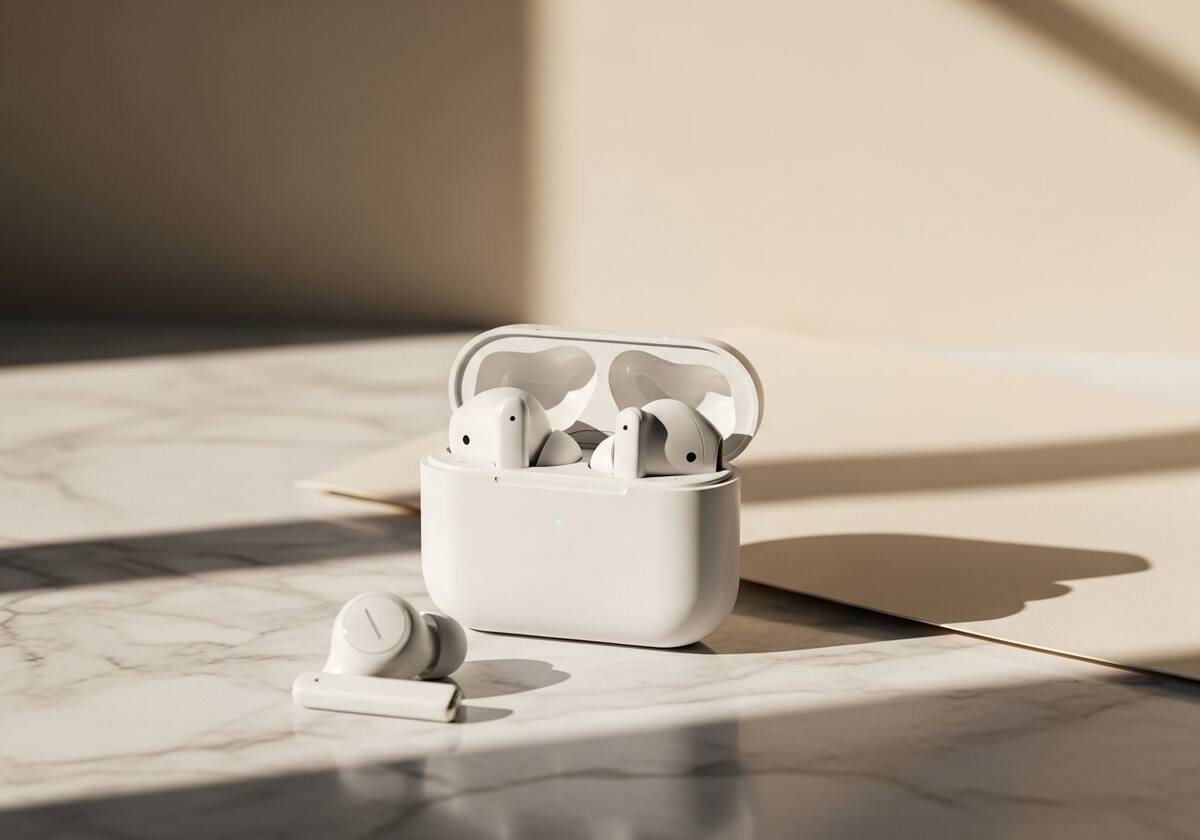
If pairing fails repeatedly, remove any half-paired entries for the device from the Bluetooth panel before trying again. A leftover entry from a failed previous attempt can confuse the next try.
On the device side, "factory reset" or "clear pairing list" gestures are well-documented in the maker's instructions. Doing both sides clears any one-sided memory and gives the next attempt a fresh start.

Bluetooth shares the 2.4GHz band with Wi-Fi. On laptops with an older combo radio, heavy Wi-Fi traffic can prevent pairing from completing. Pausing Wi-Fi for the pairing attempt sometimes resolves it.
Updating the Bluetooth driver from the laptop maker's page often improves coexistence behaviour and resolves pairing issues that come and go without an obvious pattern.
Hand-picked articles that pair well with this one.
Plain-English explainers, fix walkthroughs, and concept articles for every part of your system.